
Open the policy
App Menu Admin -> Settings -> Workflows
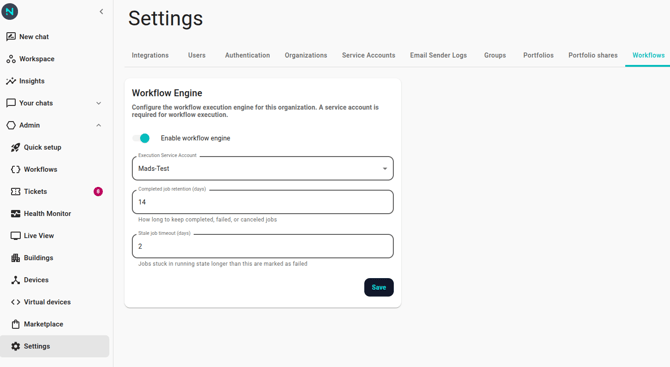
Settings
Enabled
Master switch for the whole workflow engine in this org.
- On: triggers fire, executions run, the UI is visible to admins.
- Off: existing workflows sit idle. New triggers are ignored. Users can still open the editor and browse history, but nothing new executes.
Turn this off if you're mid-migration, investigating a runaway workflow, or pausing the feature for policy reasons. Turning it back on resumes normal operation; events that were suppressed while it was off are not replayed.
Service account
The identity that scheduled triggers run as.
- Pick a service account from the dropdown. The list is populated from Settings → Service accounts.
- Leave blank only if you have no schedule-triggered workflows. Event-triggered workflows don't need this.
If the selected service account is deleted or disabled, schedule triggers fail to fire and you'll see errors in the affected workflows' execution logs. See Service account setup to create or restore one.
Completed job retention (days)
How long to keep executions once they've finished.
- Defaults to 14 days.
- After this many days, completed executions are deleted — UI no longer shows them, server no longer stores them.
- Raise it for compliance reasons; lower it for tighter resource use.
This only affects the execution history. Workflow definitions (the nodes you built) are never deleted by retention.
Stale job timeout (days)
Safety cutoff for executions that get stuck.
- Defaults to 2 days.
- An execution that hasn't produced a result within this many days is marked as failed automatically.
- You usually don't need to change this; a stuck execution past a couple of days almost always means a lost integration or a bug.
When to change policy
- New customer onboarding: turn Enabled on, pick or create a service account, leave retention at defaults.
- Incident response: turn Enabled off while you investigate a rogue workflow. Remember this stops every workflow, not just the rogue one.
- Compliance review: raise retention so auditors can look back further; consider also exporting executions to your archival system.
- Quiet period: lower retention if you have a very high volume of executions and the history is cluttering the UI.