
Before you start
- A Gude Expert Power Control unit with firmware that supports MQTT.
- The unit needs outbound access to
mqtt.neowit.ioon port8883. - Admin access to Neowit Settings → Integrations.
- The broker's CA certificate, if your unit verifies the server — see TLS and the CA certificate. Download it before you start; some firmware needs a reboot after uploading one.
One integration covers as many units as you like. Every unit shares the same username and password and is told apart by its client ID.
Step 1: Create the integration in Neowit
- Open Settings → Integrations and click Add integration.
- Pick Gude Expert Power Control and give it a name, for example
Rack PDUs. - Click Save. The connection details become available once the integration exists, because its identifier is also the MQTT username.
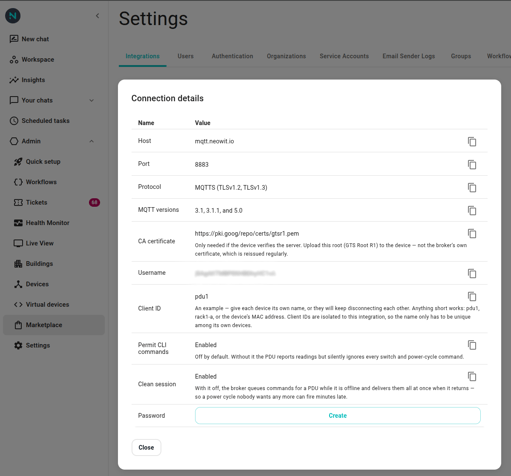
- Open the integration again and click Show connection details.
- Click Create next to Password and copy the value. It is shown once.
Step 2: Configure each unit
Setting up more than one unit? Skip ahead to Provisioning several units at once — one command configures a whole rack over your network, including everything below. What follows is the same settings by hand, in each unit's own web interface under MQTT.
| Setting | Value |
|---|---|
| Broker | mqtt.neowit.io |
| Port | 8883 |
| TLS | Enabled — see TLS and the CA certificate |
| User | The Username from the connection details |
| Password | The password you copied |
| Client ID | A short name of your own, unique per unit — pdu1, pdu2 |
| Topic prefix | Leave it as it came |
| Permit CLI commands | Enabled |
| Device data timer | 300 seconds |
| Clean session | Enabled |
Three of these are easy to get wrong, and each one has a distinct symptom:
- Client ID must be unique per unit — two units sharing one keep disconnecting each other. Anything short does:
pdu1,rack1-a, the unit's MAC. Client IDs are isolated to this integration, so the name only has to be unique among its own units. Letters and digits only, 23 characters max: this unit accepts nothing else. - Permit CLI commands is off by default. Without it the unit still reports readings, but silently ignores every switch and power cycle command. Neowit flags a unit in this state on its device page.
- Clean session should be enabled. With it off, the broker queues commands for a unit while it is offline and delivers them in a burst when it returns — so a power cycle nobody wants any more can fire minutes late.
The topic prefix needs no attention: a unit identifies itself in its readings, so whatever prefix it came with is fine.
Save and let the unit reconnect.
Checking a unit on site
Each unit's own web interface, on the local network, is the quickest way to confirm its settings and its MQTT connection state — and to switch an outlet by hand and watch whether Neowit notices.
Step 3: Check it worked
Within one device data timer interval, the unit's devices appear under Devices:
- One device for the unit itself, carrying voltage and current.
- One device per outlet.
- One device per attached temperature or humidity probe.
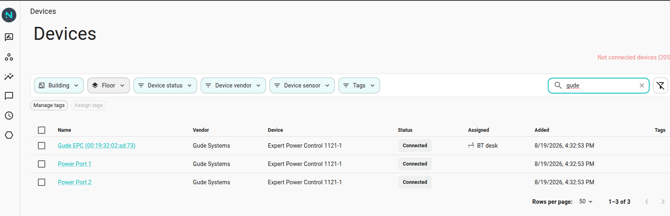
If nothing appears, work through the three settings above in order. If the unit never even connects, check its CA certificate: a unit that can't verify the broker usually reports a TLS or certificate error rather than a login failure. If it connects and then keeps dropping, two units are probably sharing a client ID.
How devices are named
Outlets take the label set on the unit, with the outlet number appended. Relabel an outlet on the unit and the device name follows on the next update, so it is worth naming outlets after what is plugged into them.
Removing a unit
Take the unit off the broker by disabling MQTT on it. Its devices stay in Neowit so their history is preserved. To have them cleaned up automatically, set Device deletion mode to After no data received on the integration and pick a window.
Related
- TLS and the CA certificate — the root a unit needs to verify the broker.
- Provisioning several units at once — configure a fleet by script.
- Gude in workflows — switching and power cycling outlets.