
Before you start
-
A Google Workspace admin role on the domain (Path B), or admin rights on a single user account that can have 2-Step Verification enabled (Path A).
-
A target mailbox or domain you control — Google requires the From envelope to match a verified Workspace user or domain.
You have two options. Pick whichever matches your operational style:
| A — App password on a user | B — SMTP relay service | |
| Sender | A specific Gmail user | Any address in the domain |
| Auth | User's password + app password | Per-relay credentials |
| Use case | All workflows send as "automation@…" | Larger volumes; multiple senders |
| Daily quota | 2,000 messages/day per user | 10,000 messages/day per domain |
| IP allowlist | Not needed | Required (one of: static IP, login required, etc.) |
If you're unsure, start with Path A — it's faster to set up.
Path A — App password on a Gmail user
Step 1 — Enable 2-Step Verification
App passwords on Gmail require 2SV.
- Sign in to https://myaccount.google.com as the sending user.
- Open Security → 2-Step Verification and complete the wizard.
Step 2 — Create an app password
- Visit https://myaccount.google.com/apppasswords.
- In the App name box, enter "Neowit Workflow Engine".
- Click Create.
- Copy the 16-character password Google shows. It's only shown once.
If the page redirects you back to Security, your account is enrolled in Advanced Protection which disallows app passwords; switch to Path B.
Step 3 — Connect the integration in Neowit
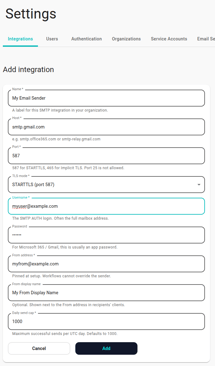
- In Neowit, open Settings → Integrations → Add integration → SMTP.
- Fill in:
- Host —
smtp.gmail.com. - Port —
587. - TLS mode —
STARTTLS. - Username — the user's full Gmail address.
- Password — the 16-character app password (no spaces).
- From address — the same Gmail address.
- Host —
- Click Save and confirm the Connected badge.
Path B — SMTP relay service
Use this when you want multiple workflows to send "as" different addresses in your domain — or you need higher volume than 2,000/day.
Step 1 — Configure the relay in the admin console
- Sign in to https://admin.google.com.
- Open Apps → Google Workspace → Gmail → Routing.
- Find the SMTP relay service row and click Configure (or Add another rule if one already exists).
- Settings:
- Allowed senders — "Only registered Apps users in my domains" is the simplest secure default.
- Authentication — tick Only accept mail from the specified IP addresses and Require SMTP authentication. Belt-and-braces is intentional here.
- Encryption — tick Require TLS encryption.
- Save the rule.
Step 2 — Identify the egress IP and create credentials
The Neowit integration-smtp service must connect from an IP your relay rule allows. Today the service runs in our shared Kubernetes cluster and egresses through a NAT — ask Neowit support for the current egress CIDR if you need to allowlist by IP.
For SMTP authentication, create a Workspace user (or reuse an existing one) and apply Path A's Step 1 + Step 2 to get an app password. The relay accepts that user's app password as auth.
Step 3 — Connect the integration in Neowit
- In Neowit, Settings → Integrations → Add integration → SMTP.
- Fill in:
- Host —
smtp-relay.gmail.com. - Port —
587. - TLS mode —
STARTTLS. - Username — the Workspace user.
- Password — that user's app password.
- From address — any verified address in your domain.
- Host —
- Save and confirm Connected.
Common pitfalls
- "Bad credentials" with app password — most likely 2SV isn't actually on, or you copied the spaces between the four 4-character groups. Drop the spaces.
- "Bad credentials" with relay — auth is fine but the egress IP isn't on the allowlist; relay rules with both auth and IP allowlist enabled require both to match.
- Mail rejected with
554-5.7.1 Email is not RFC compliant— your From address isn't in a domain Workspace knows about. Add the domain in admin console or switch the From to a domain you own. - Mail accepted, never arrives, sender flagged as spam — your DKIM record isn't set up for the relay. See Google's Set up DKIM guide.