
Before you start
- A Microsoft 365 admin role on the tenant.
- A licensed mailbox to send from — typically a shared mailbox or a dedicated automation account. The mailbox needs an Exchange Online license (Plan 1 or higher); Kiosk / F1 doesn't include SMTP AUTH.
- Multi-factor authentication on that account, with permission to create app passwords. SMTP AUTH submission requires either an app password or that the account is excluded from MFA — app passwords are strongly preferred.
Note: SMTP AUTH submission is the integration path that matches the "printer / scanner / line-of-business app" use case. It is not the same as Direct Send (no auth, IP-restricted) or High-volume relay — those have their own setups not covered here.
Step 1 — Enable SMTP AUTH on the mailbox
By default Microsoft disables SMTP AUTH tenant-wide. You enable it per mailbox:
- Sign in to https://admin.microsoft.com.
- Open Users → Active users, pick the mailbox, then open the Mail tab.
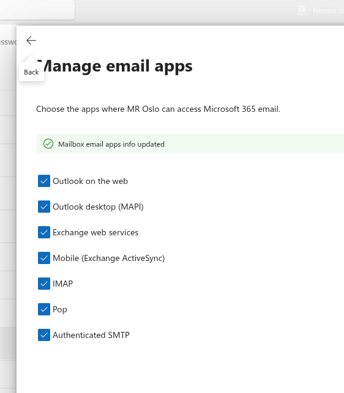
- Click Manage email apps.
- Tick Authenticated SMTP.
- Click Save changes.
If the checkbox is greyed out, your tenant has SMTP AUTH disabled organization-wide. Open the Microsoft 365 admin center → Settings → Org settings → Modern authentication and check the "Authenticated SMTP" row, or follow Microsoft's enable-or-disable-SMTP-AUTH guide.
Step 2 — Create an app password
- While signed in as the sending mailbox, go to https://mysignins.microsoft.com/security-info.
- Click Add sign-in method, choose App password, and give it a label like "Neowit Workflow Engine".
- Copy the password Microsoft shows you. Do this now — it's only displayed once.
If the App password option isn't in the list, your tenant disables app passwords. Either turn that on in Entra ID → Authentication methods, or exclude this account from the conditional-access policy that's blocking it.
If the App password option is not available, make sure it is not blocked by an organizational policy, see https://learn.microsoft.com/en-us/entra/identity/authentication/howto-mfa-app-passwords#allow-users-to-create-app-passwords
Step 3 — Connect the integration in Neowit
- In Neowit, open Settings → Integrations.
- Click Add integration and pick SMTP.
- Fill in:
- Name — Microsoft 365 outbound or similar.
- Host —
smtp.office365.com. - Port —
587. - TLS mode —
STARTTLS. - Username — the full UPN of the mailbox (e.g.
workflows@yourdomain.com). - Password — the app password from Step 2.
- From address — the same UPN.
- From display name — optional, e.g. "Neowit Workflows".
- Daily send cap — leave at 1000 unless you've thought about it.
- Click Save.
After ~30 seconds the integration card shows a teal Connected badge. If it stays Bad credentials or Unable to connect, jump to Common pitfalls below.
Common pitfalls
- "Bad credentials" right after saving. Either the app password was copied wrong, or SMTP AUTH is still disabled for this mailbox. Verify Step 1, then regenerate the app password.
- "Bad credentials" after working for a while. App passwords don't expire on a schedule, but they're revoked when the user resets their primary password or when conditional access blocks the IP. Check the Entra ID sign-in logs for the mailbox.
- "Unable to connect" — usually a tenant-wide block. The most common cause is a conditional access policy that disallows legacy authentication. Add an exclusion for this account, or use a service principal route instead (out of scope for this article).
- Mail accepted by
smtp.office365.combut never arrives. Check the recipient's junk folder, then the message-trace log in Exchange admin center. Common cause: SPF doesn't listspf.protection.outlook.comfor the From domain.