
The three states
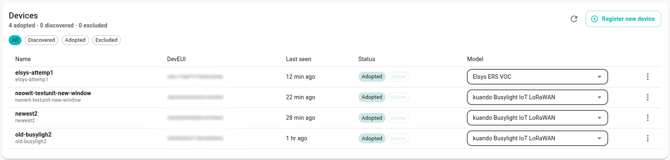
Every adopted device shows two chips in the Devices table: the adoption state (Adopted / Discovered / Excluded) and a lifecycle state. The lifecycle state is what tells you whether the device is healthy.
The three lifecycle values come from ChirpStack's Console vocabulary, used verbatim so the mental model matches what you see in the upstream tool:
- Active — the device has joined and is sending uplinks within the expected cadence. For a Busylight, that means a keep-alive uplink in roughly the last 30 minutes.
- Inactive — the device joined at some point but hasn't been heard from in about a week. Something is wrong: powered off, out of gateway range, battery / USB power lost, or moved out of the building.
- Not yet activated — the device is registered in TTN but has never joined. Usually the credentials don't match the sticker on the device, or the device has never been powered on within reach of a gateway.
What to do for each state
Active
Nothing. The device is healthy. Workflows that target it can expect their downlinks to land.
Inactive
The device has been silent long enough that it's worth investigating. Do one of:
- Check on-site. Is it powered? Within range of a gateway? Has someone unplugged it?
- Check TTN. The TTN console shows the same
last_seen_attimestamp. If TTN sees nothing either, the device is genuinely offline. - Remove it. If the device is gone for good (decommissioned, lost, returned), use the Remove flow to wipe its credentials. The Devices table also shows an inline nudge — "Silent for X days. Consider [removing it]." — which opens the Remove dialog directly.
The threshold for Inactive is about 7 days for the Busylight. That's well over a hundred missed keep-alive cycles, so a single missed uplink won't trip it.
Not yet activated
The device has credentials in TTN but has never joined the network. Check, in order:
- Power. The device needs to be powered on and within gateway range to attempt a join.
- Credentials. Confirm the DevEUI, JoinEUI, and AppKey you entered in Register match the values printed on the device sticker (case doesn't matter; hex characters do).
- Coverage. Walk the device closer to a known gateway, power-cycle it, and wait a minute. The state flips to Active on the first successful join.
If the device repeatedly fails to join, deleting and re-registering with re-checked credentials is the fastest recovery.
Stuck on Join
Sometimes a freshly-registered device sends Join Requests that TTN accepts but never lands the Join Accept back on the device — so it keeps retrying. Two common LoRaWAN protocol error names show up in TTN's Live data tab:
ns.down.join.schedule.fail(or "scheduling conflict") — TTN's gateway couldn't fit the Join Accept into the device's narrow RX1 or RX2 window. The gateway has hit its airtime budget (EU868 enforces a 1% duty cycle) or is busy talking to another device at the exact moment the Join Accept needed to go out.ns.up.join.cluster.failwith "DevNonce has already been used" — the device retransmitted a Join Request with a DevNonce TTN's Join Server has already seen, so it rejected the retry.
Neither is a fault in Neowit or in your device config — both are protocol-level. Recovery, cheapest first:
- Power-cycle the device. Unplug for ~30 seconds and plug it back in. Most Plenom firmware regenerates a fresh DevNonce on power-up, so the next Join Request uses a value TTN hasn't seen.
- Reset the device on TTN. If step 1 doesn't unstick the device within ~5 minutes, open the device in the TTN Console → General settings → Network layer → Reset session and MAC state. This clears TTN's stored DevNonce history for the device.
- Wait, then re-register. As a last resort, Remove the device in Neowit, wait ~1 hour for the gateway's duty-cycle window to clear, then register again.
When the state seems wrong
The state is computed every time Neowit refreshes the Devices table. If you're sure a device is sending uplinks but the chip says Inactive, click Synchronize on the integration card to force an immediate refresh. If the chip still doesn't update, the integration may be disconnected on the TTN side — see Set up.