
Requirements
- You need admin privileges in the Neowit platform
- Purchase a Neowit Live View license per Display configuration
Start configuration
Log in to the Neowit platform using a user account with administrator privileges.
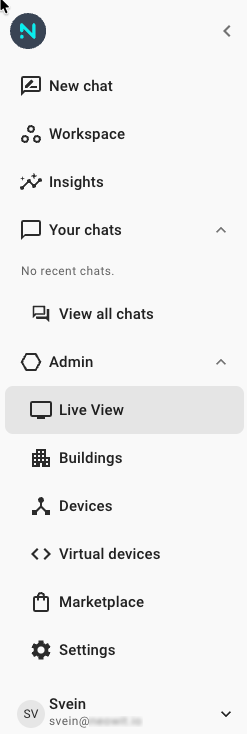
Next, access the LiveView configuration by clicking the corresponding icon in the menu bar.
Within the Live View Configuration, these three options will be visible.
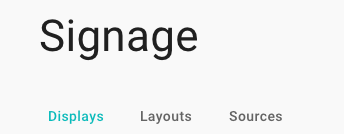
A Live View presentation is composed of various Sources arranged in a specific Layout. This Layout is then published to a Display. Each Display has a public URL that can be used for presentation, either through a dedicated signage solution or by direct display in the web browser of a signage screen.
Sources
The initial step requires configuring the sources of information to be presented.

Click the plus sign in the lower right corner.
You can now configure various information sources, with the primary ones being the Resource List and the Floorplan.
Resource List
We recommend starting the process by configuring resource lists. These are the resources for which you want to display the occupation and calendar status, and/or their location on a floor plan.
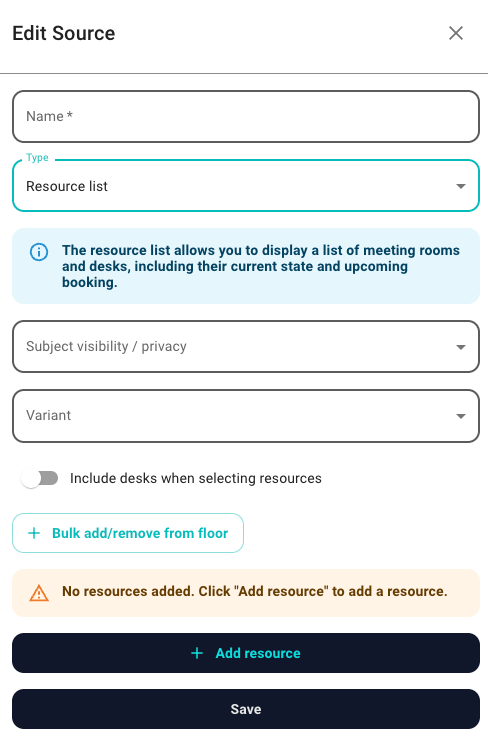
- Name the resource list source with a relevant name
- Choose the visibility of the calendar information
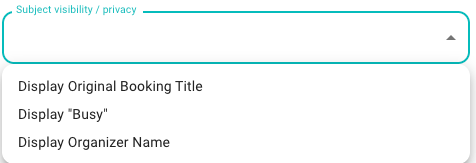
- Choose the type of visualization
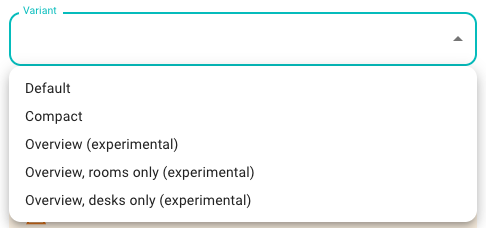
- Default is the standard sized box
- Compact condenses the boxes for each room and reduces the text size.
- Overview shows only available rooms and desks on the selected floors.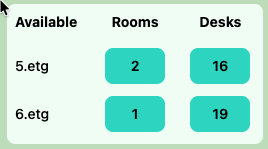
Overview (example) - Choose whether to Include desks in the list of available resources to add

- Optionally, bulk add resources from a specific floor. If you skip this, you will select individual resources in the next step.

- To complete the process, you need to individually add the desired resources by clicking the Add resource button.

Here you will be able to choose available resources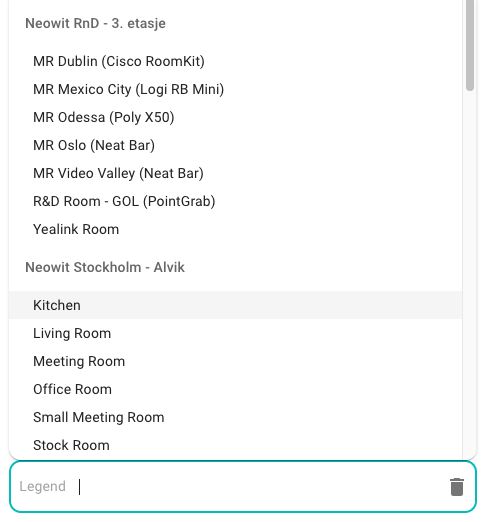
The Legend visually illustrates where the resource is positioned on the floorplan.
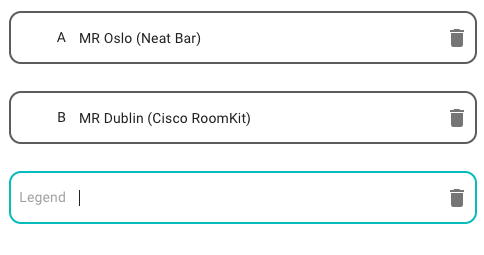
- Finally save the Source configuration.
Floorplan
Next, you will add the floorplans as sources. For each floorplan source, you need to select the relevant workspace and floor. You also have the option to include Legends from the previously created Resource List Sources, as well as a Display Mode.
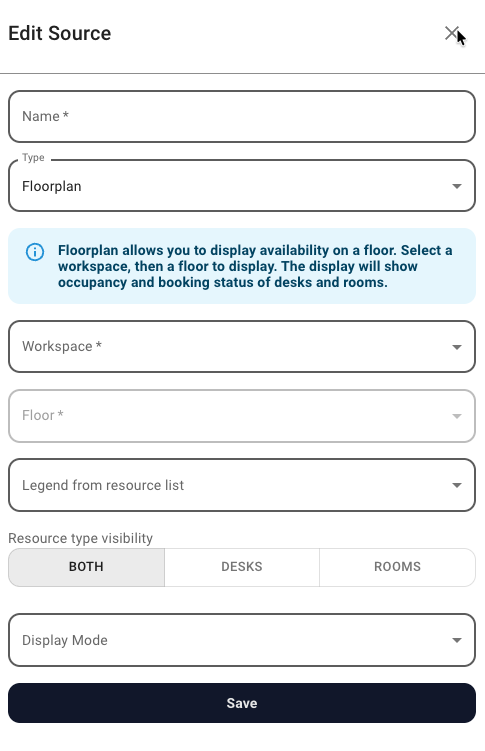
- Name the Floorplan source with a relevant name
- Choose Workspace and Floor
- Specify whether to show legends from a resource list. If enabled, select the desired resource list.
- Specify the resource types to include in the visualization.
- Choose your preferred display mode: Icons or Overlay.
Icons display resources as small icons. The icon type represents the resource, and a color (red or green) indicates its status.
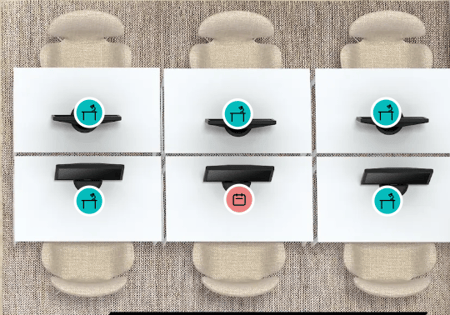
Overlay covers the configured resource area with a status color, red & green or colors of your choice (to be configured later in the Layout).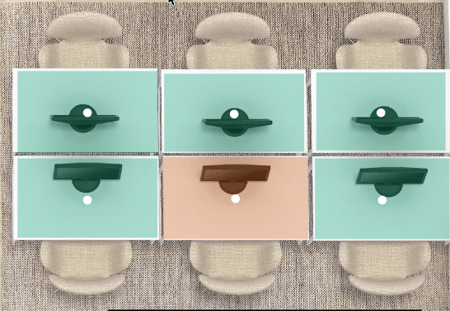
- Finally save the Source configuration.
Layouts
The next step is to define the screen layout that will present the Sources you configured in the previous steps.
Click the plus sign in the lower right corner.
Appearance tab
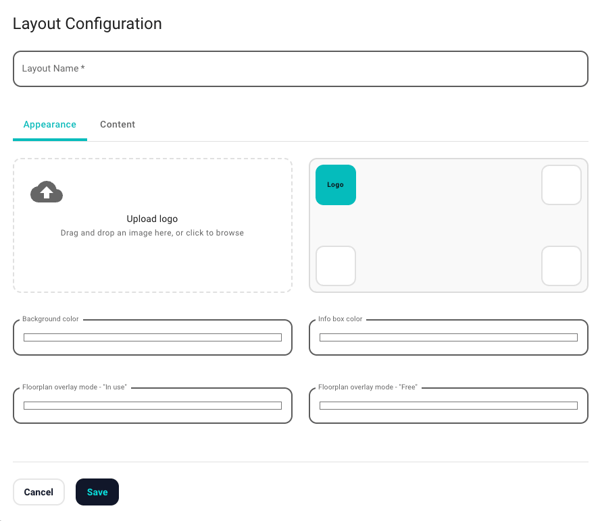
-
Name the Layout with a clear, descriptive name.
-
Upload your logo and adjust its position as needed.
-
Select your preferred colors for the Background and Info box.
You can use RGB, HSL, or HEX values. -
Configure the colors that will represent “In use” and “Free” when using Overlay mode.
Content tab
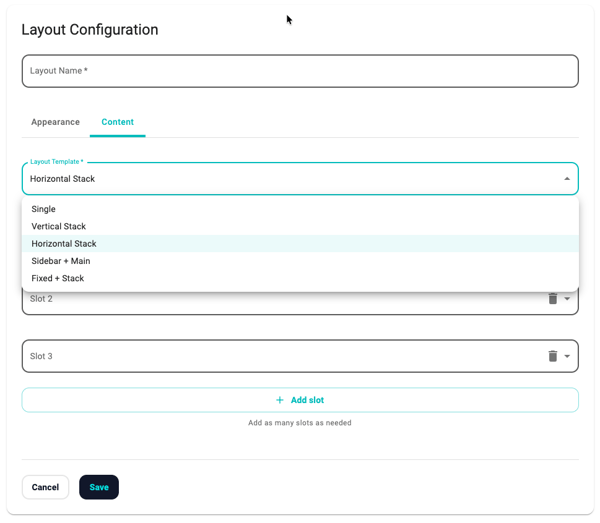
-
The most important choice is between a Single, Horizontal, or Vertical stack. This controls how your selected sources are arranged in the Layout.
- If you only want to show a floorplan (or any other Source), select Single.
- If you want to show a room list with booking information together with a floorplan, select either Horizontal or Vertical.
- Horizontal is recommended for landscape-oriented signage screens.
- Vertical is recommended for portrait-oriented signage screens.
- Place the different Sources into the available Slots. They are arranged from left to right and top to bottom.
- Save
Display
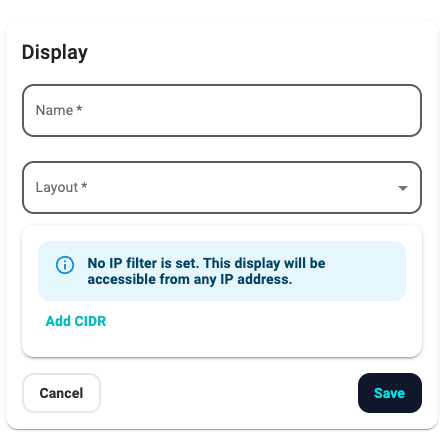
The final step in a Live View configuration is to publish the layout to a Display configuration. The Display configuration contains the public URL for the presentation and can optionally restrict access to specific IP addresses using a filtering rule.
-
Name the Display config with a clear, descriptive name.
-
Select the Layout you want to use for this Display configuration.
-
Add an IP filter by clicking Add CDIR.
- Save
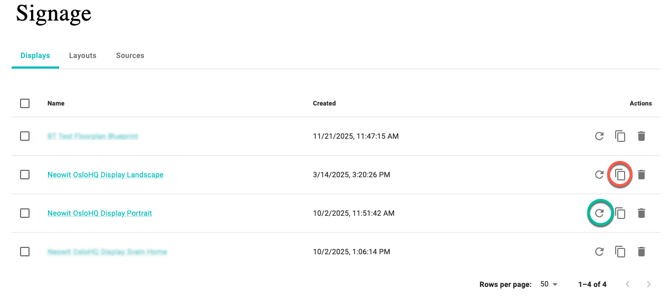
-
To copy the public URL for a Display, click the icon marked with the red circle.
-
To refresh a Display configuration after changing details in a Layout or Source, click the icon marked with the green circle.
- Licensed per Display configuration