Prerequisites
- You need to have your sensors connected to a network, either utilizing Ethernet (PoE), WiFi or a LoRaWAN infrastructure
- You need network access to the sensor to configure it
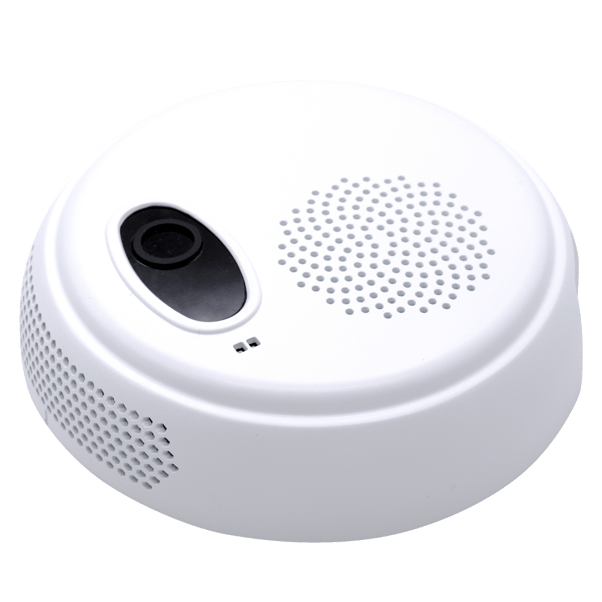
- Current support for both their Occupancy and Flow sensors
How to add integration in Neowit
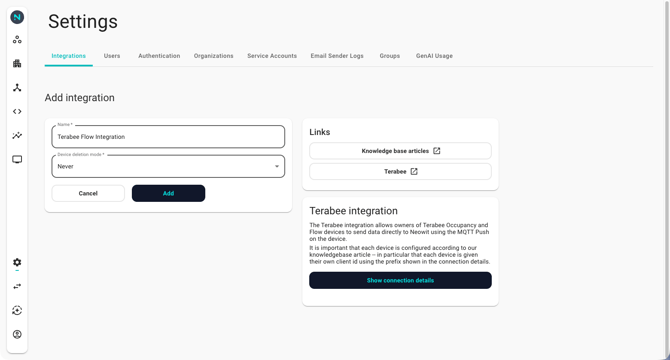
- Login to Neowit->Settings-> Integrations
- Click the Plus sign in the lower right corner
- Find the Terabee integration from the list of available integrations, and click Add
- Name: Name the integration in platform
- Choose Device Deletion Mode
- Click Add
-
You will now see the newly created Terabee integration in the list of all your integrations

- Open it again and click Show Connection Details to see the parameter to be added to the config of the sensor
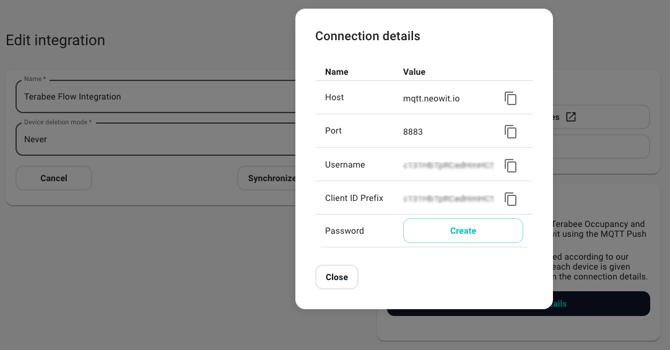
- Copy the ; Host, Port, Username and Client ID Prefix and save it for later config of sensor
- Click Create on the Password line
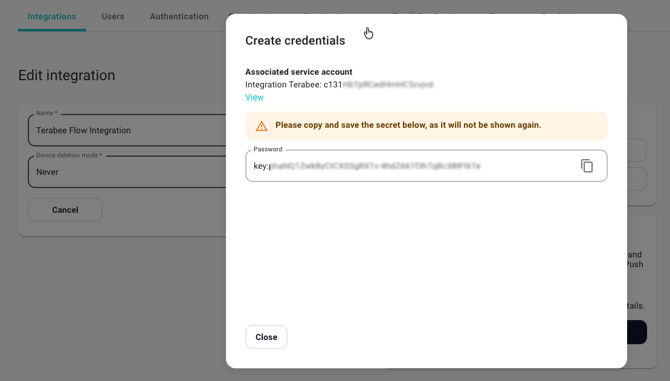
- Copy the Password and save it for later config of sensor
- Close
Add the config to the Terabee sensor
Flow Sensor (PoE)
-
Ensure the sensor is properly connected to the network.
- Open the sensor’s web interface (WebGUI). The URL to access it is printed on the “config card” included in the sensor’s packaging.
- On the Standard Parameters tab, configure the detection area along with the sensor’s mounting height and placement.
- On the Advanced Parameters tab, enter the MQTT connection details you copied from Neowit to connect the sensor to the Neowit platform.
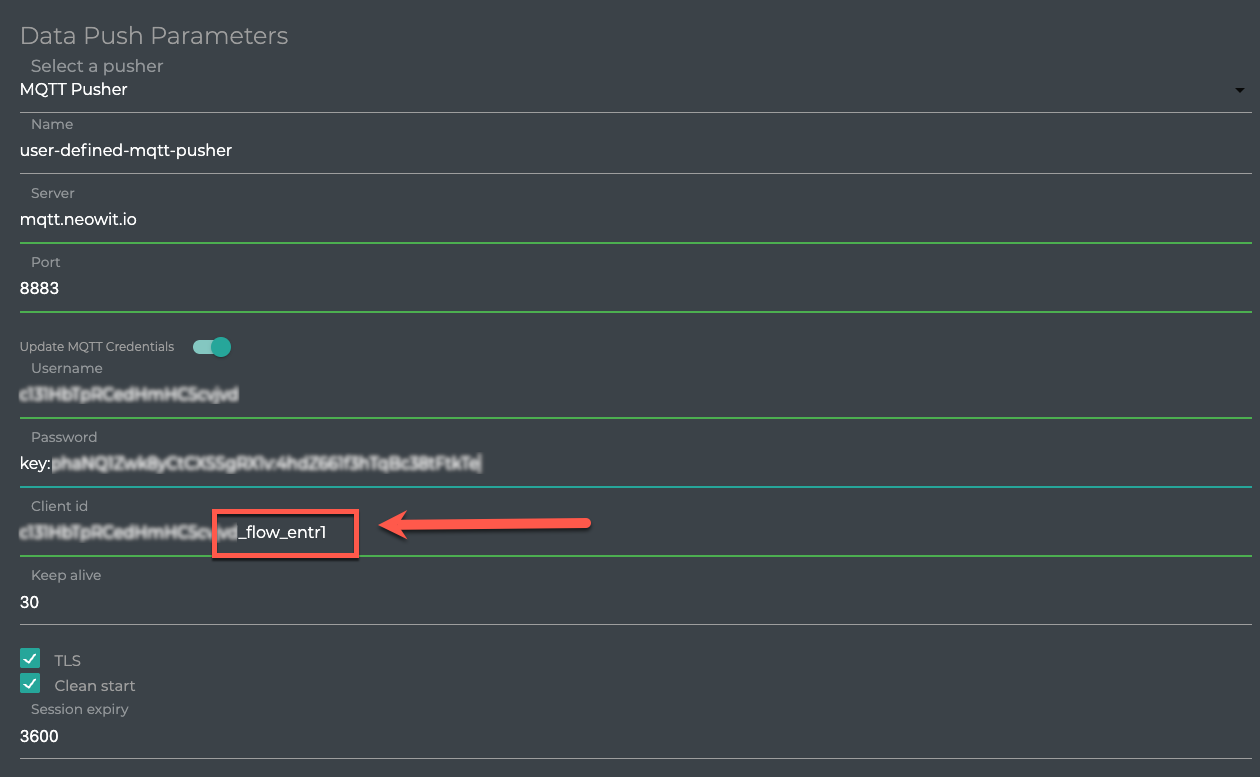
- Select MQTT Pusher
- Name the MQTT config with a relevant name
- Copy and Paste the Server
- Copy and Paste the Port
- Copy and paste the Usename
- Copy and Paste the Password (including the word "key")
- Copy and Paste the Client ID Prefix
- Add a relevant name for the sensor (shown in Neowit) - like in the red square - Ensure the following settings are configured exactly as listed below and as shown in the image above.
Keep Alive = 30
Session expiry = 3600
TLS = Checked
Clean start = Checked - The final configuration step is to specify which sensor data to send by configuring the Payload.
Click Add New Payload and configure payload entries as shown in the image above.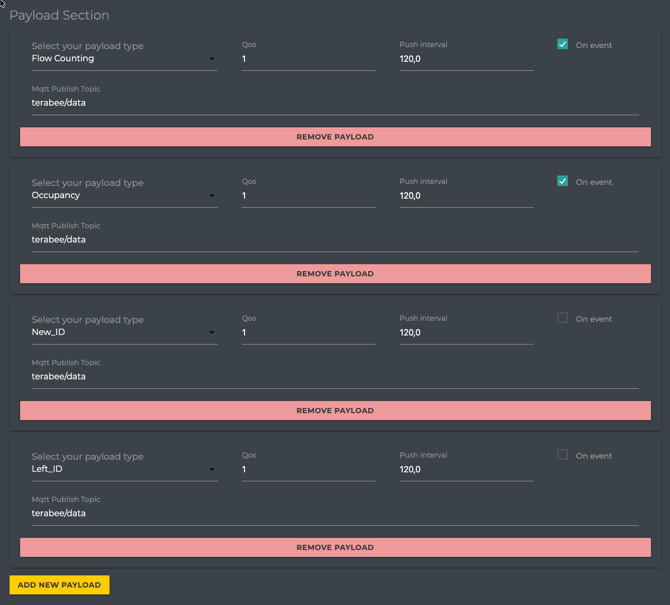
- Save MQTT Parameters
- Go back to Standard Parameters tab and select Apply Parameters on the bottom of the page
All devices configured will appear under Devices with a name corresponding to the configure Client ID.
Click here to see how to add devices to platform
Sensors information presented in Neowit
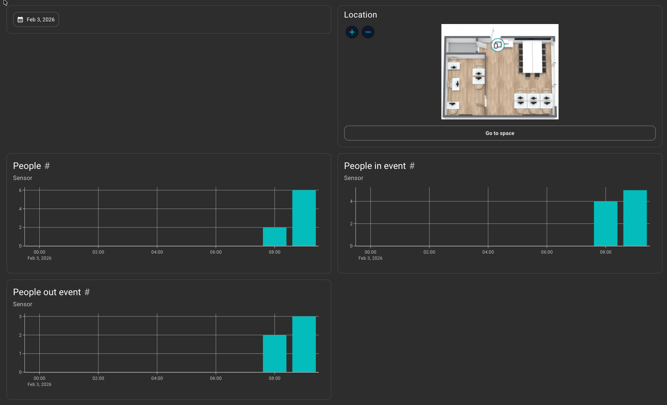
People, People In Event and People Out Event.