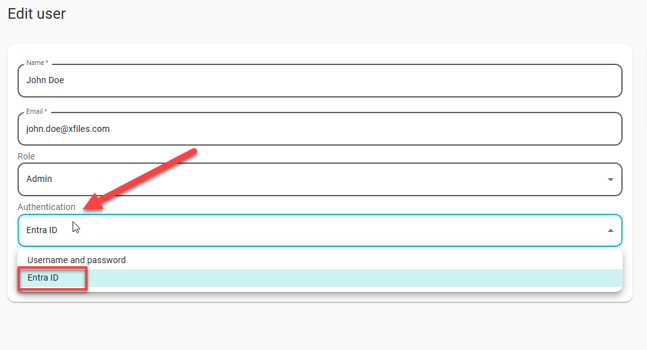
Then you need to create a new Enterprise Application in Entra ID admin center. (requires admin privileges in your Entra ID account).
- Open https://entra.microsoft.com
- Navigate to Enterprise applications, then open All applications
- Click New application
- Click Create your own application. Give it a name, and leave the rest to default.
The next steps is to integrate the identity provider in Neowit with the Enterprise application in Entra
- Navigate to Single sign-on in the newly created Enterprise application, and select SAML.
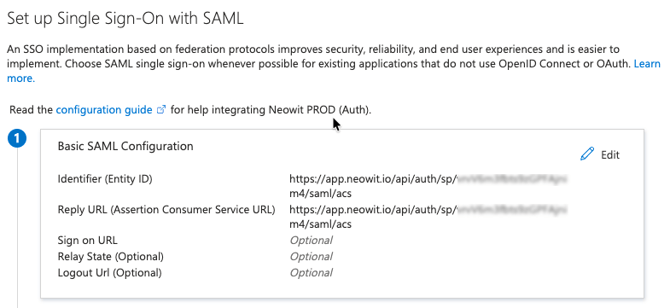
- Copy and paste the Entra ID and ACS URL fields from the Neowit configuration page to the
Basic SAML Configuration fields in Entra.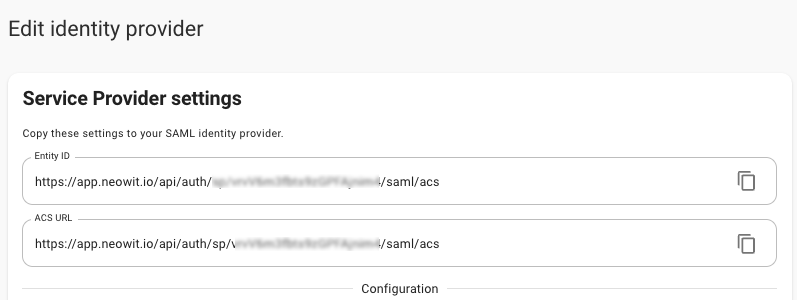
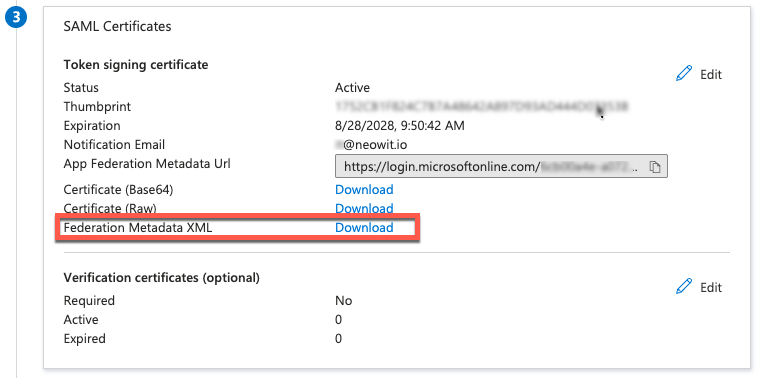
- Download the Federation Metadata XML file from SAML Certificates in Entra and upload it using Option 1 on the Neowit configuration page.
- Navigate to Users and groups in the application you created and assign users or groups you want to be able to log in to this application.