
What a silence does
While a silence is active for a subject, the health monitor still observes its health events and updates the live status on the Health Monitor page. But it does not open new tickets for that subject. The silence affects only the "open a ticket" decision; everything else continues as normal.
A silence is per-subject (per device or per integration) and time-bounded. When the silence expires, the next unhealthy event for that subject re-enters the normal debounce path and may open a ticket.
What a silence does not do
- It does not pause the whole monitor. Silences are per-subject. Other devices, other integrations, other orgs are unaffected.
- It does not auto-resolve existing tickets. If a ticket is already open when you silence, that ticket stays open. Resolve it manually if you want it gone.
- It does not suppress workflow triggers on other tickets. Workflows that fan out off
Ticket Openedonly see tickets that actually opened; the silence prevents the open in the first place.
How to silence a subject
From a ticket's detail page:
- Click Silence health monitor for this device (or integration) below the ticket's metadata.
- Pick a duration: 1h / 4h / 8h / 24h / 7d, or Custom for an arbitrary number of hours.
- Optionally type a short reason — surfaces in the active-silences list for the next person who looks.
- Click Silence.
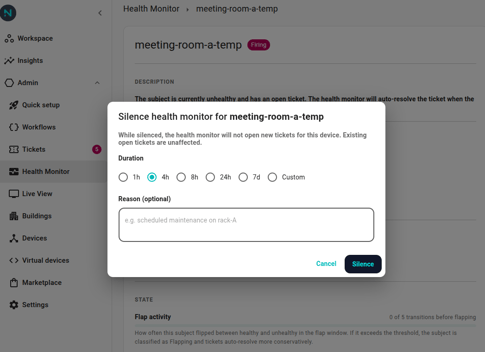
You can also silence directly from a subject's detail page on the Health Monitor using the same dialog.
See active silences
Open Health Monitor in the left navigation and switch to the Silences tab. The page heading reads Active silences. The table lists every active silence for your org with these columns:
- Subject — clickable, takes you to the subject's detail page on the Health Monitor.
- Kind — Device or Integration.
- Until — when the silence expires automatically.
- Created — when it was added.
- Created by — the user who silenced it.
When a silence has a reason, the reason appears as an italic line directly below its row. Each row has a delete icon at the right end — click it to end the silence early (a confirmation prompt appears).
Limits
- Maximum silence duration: 90 days. For longer maintenance windows, set a 90-day silence and renew when needed.
- Reason text is capped at 500 characters.
- Silences only apply to device and integration subjects. Spaces and other subject kinds can't be silenced directly.
Note: Removing a silence is immediate. The next unhealthy event for the subject re-enters the normal debounce path and may open a ticket.
Failure mode
If the health monitor can't read your silences (rare storage glitch), it errs on the side of false positives and opens the ticket anyway. A ticket that fires during a silence the monitor couldn't see is safer than silently dropping events during a real outage.