
Pick the right path
Two ways to take a device off the platform. They aren't interchangeable — pick based on what should happen to the device's TTN credentials and whether you'll want it back.
Glossary
- Remove — delete the device end-to-end from TTN's registries (Network Server, Application Server, Join Server, Identity Server) and from Neowit. The crypto keys are wiped. Irreversible.
- Unadopt — drop Neowit's tracking but leave the device on TTN. The device keeps its credentials and can keep sending uplinks. You can re-adopt it later without re-entering anything.
| You want | Use |
|---|---|
| The device is gone, broken, or being decommissioned. Wipe everything. | Remove |
| You're pausing tracking but might come back. | Unadopt |
| The owner returned the device but you want a fresh start with new credentials. | Remove, then Register or Claim a fresh device. |
Remove a device (hard delete)
- In Settings → Integrations → The Things Network, open the integration card.
- Find the device in the Devices table.
- Click the kebab menu (
⋮) on the right-hand side of the row. - Pick Remove device (the red, top option).
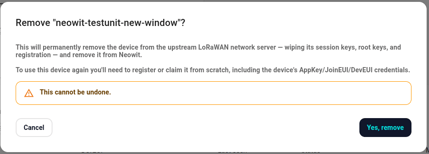
- A confirmation dialog appears explaining what will happen:
- The device is removed from TTN's Network Server, Application Server, Join Server, and Identity Server. Its session keys, root keys, and registration are all wiped.
- The device is removed from Neowit.
- To use this device again, you'll need to register or claim it from scratch (the DevEUI / JoinEUI / AppKey credentials live in the device's firmware, but they have to be re-entered here).
- Click Yes, remove.
The device disappears from the Devices table on the next refresh. Check the TTN console if you want independent confirmation; the device is also gone from the application's device list there.
Note: Remove is idempotent. If a previous attempt succeeded on some TTN components but failed on others, a second Remove cleans up the rest without erroring on the already-gone parts.
Unadopt a device (soft, reversible)
- In the Devices table, click the kebab menu (
⋮) on the row. - Pick Unadopt (keep on TTN).
The row drops out of the Adopted tab and reappears as Discovered on the next poll (within five minutes). The device keeps every TTN credential intact and can keep sending uplinks — Neowit just stops listening to them.
To re-adopt later, follow Adopt an existing device. You won't need to re-enter any credentials.
What if the device's owner is gone?
If the device's owner reports it as turned off, lost, or returned, Remove is the safer choice — it wipes the crypto material so the now-loose device can't accidentally join a different application elsewhere with stale keys.
If you're not sure yet ("might come back next quarter"), Unadopt preserves your options. You can always Remove later from the Discovered tab.