
Before you start
You need:
- A TTN application. Created in The Things Industries Console under Applications → Add application. The application id is the identifier you'll paste into Neowit.
- A TTN API key for that application with these scopes:
- Read application device list
- Write application device registry (so Neowit can create devices when you Register or Claim from the wizard)
- Write downlink queue (so workflows can send colour commands)
- Write webhook registry (so Neowit can auto-register its uplink webhook) TTI labels these collectively as "traffic read" and "traffic write" in the API-keys wizard. Generate the key under Applications → <your app> → API keys → Add API key.
- Admin access on the Neowit organization. Workflow builders can use devices once they're onboarded, but setting up the integration is admin-only.
Note: Keep the API key safe. If it leaks, rotate it in the TTI console and paste the new value into Neowit's integration card.
Connect The Things Network
- In the Neowit left navigation, open Settings → Integrations.
- Click Add integration and pick The Things Network.
- Fill in three fields:
- Name — any label you'll recognise (e.g. Busylights — Oslo office).
- Application ID — the TTN application identifier.
- Cluster host — the TTN region host, e.g.
eu1.cloud.thethings.network,nam1.cloud.thethings.network,au1.cloud.thethings.network, oras2.cloud.thethings.network. - API key — the key you generated above.
- Click Save. Neowit:
- Validates the API key against TTN.
- Auto-registers the inbound uplink webhook with random Basic-auth credentials (you don't see them; Neowit and TTN exchange them directly).
- Kicks off the first device-list poll.
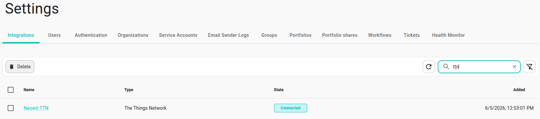
Verify it's working
- The integration card flips to Connected (teal badge) within a few seconds of Save.
- Click into the card. You should see a Devices section with every device currently registered on TTN, each marked Discovered until you adopt it.
- Click Synchronize on the card if you want to force an immediate refresh of the device list (Neowit polls TTN every five minutes by default).
When the Connect step fails
Most failures show as a red badge on the integration card with a hint:
- Bad credentials — the API key was rejected. Check the scopes (traffic read + traffic write) and that you pasted the full key. Edit the integration, paste a fresh value, and Save.
- Cluster unreachable — the hostname is wrong or your cluster is having an outage. Confirm the cluster in the TTI console's URL.
- Webhook not delivering — Neowit registered the webhook but isn't seeing uplinks. The card will eventually flag this. Disconnect and reconnect to re-register from scratch.