
How triggers work
You can have one or more triggers per workflow, and it has to be the leftmost node (nothing connects into it). Every time the trigger's event happens, the workflow runs once, from that trigger through to the final action.
Triggers fall into two broad groups:
- Event triggers fire when something happens in Neowit or a connected service (a booking, an occupancy change, …).
- Schedule triggers fire on a clock — once every 15 minutes, every Monday at 8 AM, a cron expression of your choice.
Event triggers
Event triggers come from apps inside Neowit that are publishing events. Today this includes:
Booking events
- Booking No-Show — a booked meeting was marked no-show.
- Booking Started — a meeting just started.
- Booking Ended — a meeting just ended.
- Booking Not In Use — a booking was released because nobody used it.
Each carries the full event payload: id, subject, space.{id, name}, organizer.{id, name, email}, the flags isRecurring and isAutoBooked, the moments startAt and endAt, and the series fields masterId and type. Use those fields in conditions and action templates.
startAt and endAt are datetime objects — the same shape used everywhere else in the engine. Time-aware conditions (Time Of Day, Date Range, Duration Range) accept them directly via their At / From / To fields.
masterId is set for occurrences and exceptions (it's the id of the recurring series master); it's empty for single instances and for series-master events themselves. type is the booking event type — one of:
singleinstance— a standalone, non-recurring booking. No master, no occurrences.occurrence— one instance of a recurring series. Has amasterIdpointing to the series master.exception— a modified occurrence (moved or rescheduled so it no longer follows the master's rule). Carries amasterId.seriesmaster— the recurring series itself. Owns the recurrence rule; cancelling this cancels every occurrence.
Use these to act on the whole series — e.g. cancel the master after repeated no-shows on its occurrences.
Occupancy events
- Space Occupied — fires when a space becomes occupied.
- Space Not Occupied — fires when a space becomes available.
Both carry the same payload shape: the space's id and name, plus isOccupied (a boolean — true for Space Occupied, false for Space Not Occupied), and since — a datetime object marking when the space entered the new state. Pair since with Duration Range to escalate rooms occupied past a threshold.
There's also a Space Is Occupied condition you can drop in elsewhere to check a specific space's current state.
Disruptive Technologies
- Button Pressed — fires when someone presses a Disruptive Touch or Counting Touch button. Carries
device.{id, name, externalId, type}andpressedAt(a datetime object).
Setup and troubleshooting in Disruptive Technologies.
Tickets
The ticket engine fires a trigger every time a ticket transitions on its lifecycle. Route opens, starts, comments, resolves and reopens to different sinks — page on opens, post a brief "all clear" on resolves, mirror comments into a Slack channel, etc.
- Ticket Opened — fires when a new ticket opens (a device goes offline, an integration's credentials expire, a workflow files a ticket via the Open Ticket action, …).
- Ticket Started — fires when a ticket transitions to In Progress — an agent started working on it. Useful for "someone is on it" channel notifications or for stopping a re-page timer.
- Ticket Comment Added — fires when a comment is posted to a ticket. Use to mirror customer-visible comments to Slack or email.
- Ticket Resolved — fires when a ticket auto-resolves (the subject is healthy again), a user resolves it from the
/ticketsUI, or a workflow's Resolve Ticket action closes it. - Ticket Reopened — fires in two cases with the same payload: (a) the health monitor reopens a recently-resolved ticket because the subject failed again inside the reopen window, or (b) an admin clicked Reopen on the
/ticketsdetail page. Workflows subscribed to this trigger do not need to distinguish the two — the payload is identical.
Every ticket trigger shares a common ticket envelope plus a per-trigger extra. The envelope:
ticket.id— stable canonical shortid (rarely needed in templates; prefersequencefor display).ticket.sequence— per-organization running number ("#123") shown in the UI.ticket.url— deep link to the ticket in/tickets/{sequence}.ticket.title,ticket.description,ticket.summary— human-readable copy.summaryis the one-line list-row form.descriptionis GFM markdown with bold, lists, code blocks, etc.ticket.descriptionPlain— plaintext rendering ofdescriptionwith markdown syntax stripped. Use this in Slack DM bodies, SMS, and other sinks that can't render markdown; recipients see clean readable text instead of raw**asterisks**.ticket.state—OPEN,IN_PROGRESS, orRESOLVED.ticket.subjectKind,ticket.subjectId,ticket.subjectName— what the ticket is about.subjectKindisdevice,integration,space, orother.ticket.source—health_monitorfor health-monitor-detected,userfor manually reported,workflowfor tickets filed by an Open Ticket action.ticket.kind—offline,bad_credentials,unable_to_connect,cascade,user_report, or a free-form string supplied by an Open Ticket action.ticket.openedAt— datetime object; pair with Time Of Day or Date Range conditions.ticket.flapCount— how many flap events were observed in the lead-up to the open (denormalised onto the open trigger; there is no separate Flapping trigger).ticket.extra— free-form object. For health-monitor device tickets the engine fillsvendorName,modelName,spaceId.
Tip: Use
descriptionPlain(andcomment.bodyPlain) for Slack DMs and SMS; usedescription/bodyfor action nodes that render markdown (future email actions, future markdown-aware webhooks).
Per-trigger extras:
- Ticket Started —
progress.{at, by}.byis the user id who started, orworkflow:<service-account>for a workflow-driven start. (The free-formnotecarried by older versions of this trigger was dropped — chain a Add Comment action before a state change if you want a message attached.) - Ticket Comment Added —
comment.{at, by, body, bodyPlain, eventId}.bodycarries the markdown source,bodyPlainthe plaintext rendition.eventIdis the timeline event's id — use it to deduplicate when at-least-once delivery replays the trigger. - Ticket Resolved —
resolution.{at, by}.byishealth_monitorfor auto-resolve, otherwise a user id orworkflow:<service-account>. - Ticket Reopened —
reopen.{at, previousResolvedAt, reopenCount}.
Use ticket.subjectKind and ticket.kind in an If condition to route differently — for example, a Slack DM for device offline but an email for integration credential issues. The canonical example is in Alert when a device goes offline.
Schedule triggers
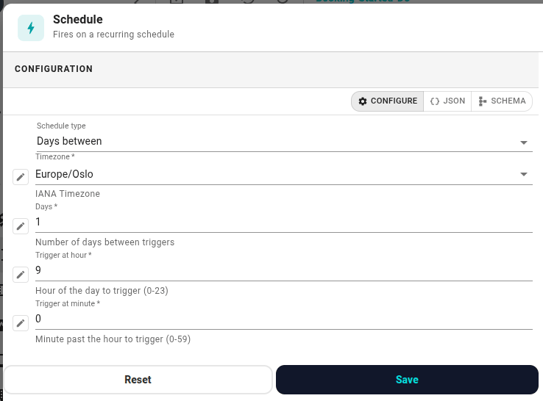
If you want the workflow to run on a clock, pick Schedule. In its settings you choose a schedule type:
- Every N minutes — great for frequent polling.
- Every N hours — hourly-ish checks.
- Every N days — daily at a specific hour and minute.
- Weekly — specific days of the week at a specific time.
- Monthly — specific day(s) of the month at a specific time.
- Cron — for the specialist; full cron expression with timezone.
All schedule types take a timezone so you don't have to think in UTC. "Every day at 09:00" means 09:00 in the zone you pick.
Referencing trigger data later
Every node downstream can read from the trigger's data. In an action's settings field, click the data-reference icon and navigate trigger → …. You get:
- Everything the trigger itself carried (the event payload).
- The timestamp the trigger fired.
Conditions have the same access; use it to filter what you actually want to act on.
Design tips
- Keep triggers specific. "Booking No-Show" is better than "any booking change filtered by status" — fewer executions, cleaner logic.
- Schedules need admin input. Running every minute is expensive; every 15 minutes or hourly is usually enough.
- One trigger per workflow when you can. A workflow can have multiple triggers — each one is an independent entry point that runs its own downstream branch — but reading a workflow with several triggers is harder. Prefer a single trigger unless the triggers share state (a counter, a cooldown, a KV key) where running two separate workflows would mean duplicating the shared piece.