
How actions work
- Every useful workflow has at least one action.
- Actions have one input and one main output. Wire them downstream of a trigger, a condition's true / false port, or another action.
- They run in order — when one action finishes, the next one starts. Nothing runs in parallel.
- If an action fails, the workflow stops. Anything downstream of the failure doesn't run.
- Every action produces output data that later nodes can reference. See References and templates.
Adding an action
- Click Add node in the toolbar. The Add Node dialog opens.
- Scroll to the Actions group, or type in the Search nodes… field.
- Pick an action. It appears on the canvas; drag an edge from your upstream node to its input.
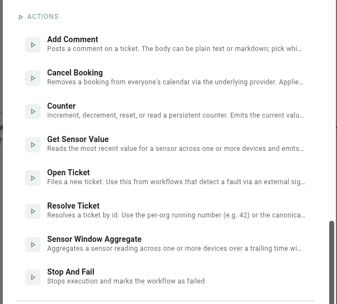
The action catalog
Today the product ships a small selection of actions. More will land as integrations grow.
Stop And Fail
Built-in. Always fails the workflow with a message you choose. Useful after a condition where the "false" path should deliberately end in a red execution — easy to spot in history.
- Message — the error text stored on the failed execution. Optional; defaults to "Stop And Fail Reached".
Send Direct Message (Slack)
Slack DM to one person, looked up by email.
- Email — the recipient's Slack email.
- Content type — text or markdown.
- Content — the message body.
- Output: channel (the DM's channel id) and ts (message timestamp).
See Slack for connect setup and common failures.
Post To Channel (Slack)
Message to a Slack channel.
- Channel — name (e.g. #alerts) or ID.
- Content type / Content — same as the DM action.
- Output: channel, ts.
Set Light (Philips Hue)
Controls one Hue light.
- Device — the light to change.
- On — true/false; leave blank to not change the state.
- Brightness — 0–100.
- Color temperature — in mireks, 153 (cool) to 500 (warm).
- Color X / Color Y — CIE xy for precise color; power users only.
- Output: lightId and success.
See Philips Hue for setup.
Set Lights (Fagerhult)
Controls Fagerhult / Organic Response lighting on one or more devices, a floor, or a building. Ephemeral override on top of Organic Response's automatic mode — set Revert to hand control back.
- Target — Devices (pick one or more lights) or Scope (pick one anchor device plus floor or building; the action targets every light on that floor or in that building).
- On — true/false. Ignored if Brightness is set.
- Brightness — 0–100. Takes precedence over On.
- Scene — 0–7. Activates a stored scene index. Ignored if Revert is set.
- Revert — true to clear any active override and return to automatic control. Highest precedence: revert > scene > brightness > on.
- Output:
success,command(DIM_TO, SCENE, or REVERT_ORES_MODE),targetedBuildings(count).
See Fagerhult for setup.
Set Busylight (The Things Network)
Controls one or more Kuando Busylight Omega devices over LoRaWAN.
- Devices — the busylights to update. Like Set Light (Hue), this accepts a list so the same Find Devices output can drive every status light in a space.
- On — true/false. When false, color and brightness are ignored.
- Color — CSS hex
#RRGGBB, e.g.#FF0000. - Brightness — 0–100. Scales color intensity.
- Pattern —
solid(steady) orblink(1 Hz flashing). - Output:
updatedDeviceIds,skippedDeviceIds,failedDeviceIds.
See The Things Network for setup.
Send Email (SMTP)
Sends a plain-text email through the configured SMTP relay. The From address is pinned at integration setup.
- To — recipient email addresses; at least one, max 50 across To/Cc/Bcc combined.
- Cc / Bcc — additional recipients, optional.
- Subject — up to 998 characters.
- Body — plain text, up to 100 KB. Wrapped in Neowit's branded HTML template before sending.
- Output:
messageIdandrecipientCount.
A per-integration daily cap (default 1000) limits runaway sends. See SMTP for setup and the cap.
Get Sensor Value
Reads the freshest value for one sensor type across a list of devices and emits it. Pair with an If condition downstream to gate on a threshold, or reference the value in a Slack message body.
- Devices — devices to check. Usually templated from the Find Devices condition's
deviceIdsoutput. - Sensor type — which sensor to read (e.g.
CO2,TEMP). - Output:
deviceId(the device that reported the freshest reading),value(the reading),at(a DateTime — also usable as input to Time Of Day, Date Range, or Duration Range conditions).
The action fails the task if no reading is available across the configured devices.
Sensor Window Aggregate
Aggregates a sensor reading across one or more devices over a trailing time window. Same pairing pattern as Get Sensor Value — use an If to gate on a threshold, and Cooldown if you want hysteresis so the workflow doesn't ping-pong across the threshold.
- Devices — as above.
- Sensor type — as above.
- Aggregator — Average, Minimum, Maximum, Sum, or Count.
- Window — trailing window as a Go duration (e.g.
5m,1h,24h), applied to readings inside[now - window, now]. - Output:
value(the aggregate) andwindowEnd(a DateTime — the right edge of the data the aggregate covers).
Average is time-weighted: each reading counts for as long as it stood, so a device reporting every minute doesn't outweigh one reporting every fifteen. Count is the number of readings received across all the configured devices — it emits 0 for a silent window instead of failing, so an If downstream can alert when a device stops reporting.
If a device reported nothing inside the window, the value it last reported still counts — that is what the sensor read for the whole window, after all. The reach-back is one window, so a sensor silent for longer than twice the window reports no data instead of answering from a stale reading. Sum is the exception: it totals the readings that actually arrived, and a held value is not a new reading.
The aggregate is assembled from buckets, so windowEnd can trail the moment the step ran by up to a sixtieth of the window — five minutes on a 24-hour window. Every aggregator except Count fails the task when the window has nothing to report.
Counter
Built-in. Reads or modifies a persistent counter and emits its value into the workflow data so a downstream If node can branch on it.
- Operation —
increment,decrement,reset, orget. Defaultincrement. - Delta — amount to add or subtract; default 1. Ignored by
resetandget. - Key (optional) — leave blank for one counter per node placement, or use a template (e.g.
space-) for separate counters per entity. - Output:
count— the current value after the operation.
Example: increment a per-space no-show counter on every no-show event, then use an If node to alert when count crosses a threshold. The counter resets when you delete the workflow. For simpler "every Nth" behavior without an If node, see Every N Times in Stateful conditions.
Open Ticket
Files a new ticket. Use this when a workflow detects a fault — a scheduled check failed, an external system reported an outage, an integration-specific event indicates a problem you want tracked in /tickets.
- Title — short, scannable plain-text title (no markdown).
- Subject kind — device, integration, space, or other. Pick other for tickets about non-Neowit entities and supply any synthetic id you can grep for.
- Subject id — identifier of the subject. Use a real entity id for device / integration / space; for other, any string works (the external system's primary key is a common choice).
- Subject name (optional) — display name shown on the list and detail pages.
- Kind — operational category. Defaults to user_report; integration-specific kinds (e.g.
maintenance_due) are allowed as free-form strings. - Description — Plain text or Markdown, same picker shape as the Slack actions. Markdown bodies render with bold/lists/code/tables on the detail page and through the read-time markdown pipeline.
- Extra (optional) — free-form key/value bag carried verbatim onto the ticket. Handy for stashing the originating system's correlation id so workflow authors can grep for it later.
- Output:
ticket— the newly-opened ticket envelope (same shape as the trigger payload).
The ticket carries source: "workflow" so it's distinguishable from health-monitor- and user-reported tickets, and the actor on the open event is workflow:<service-account> for the audit trail.
Resolve Ticket
Resolves a ticket by id. Idempotent — resolving an already-resolved ticket is a no-op.
- Ticket id — per-org running number (e.g.
42) or the canonical id. Both work. - Note (optional) — short audit message that lands on the timeline next to the resolution.
- Output:
ticket— the resolved ticket envelope.
Common pattern: pair with a Ticket Opened trigger and a condition (e.g. a specific ticket.kind), then resolve immediately to auto-close low-priority tickets. Or pair with a Schedule trigger and a stateful lookup to close cascade-parent tickets that have lingered past a threshold.
Add Comment
Posts a comment on a ticket. Allowed in any state including Resolved (post-mortem notes).
- Ticket id — per-org running number or canonical id.
- Body — Plain text or Markdown, same picker as the Slack actions. Markdown renders with bold/lists/code on the detail page.
- Output:
ticket— the ticket envelope after the comment was appended.
Pairs naturally with Sensor Window Aggregate to post hourly metrics into a ticket, or with another integration-specific trigger to mirror external system updates onto the ticket's timeline.
Cancel Booking
Removes a booking from everyone's calendar via the underlying provider. Sends a cancellation notice to attendees.
- Event ID (required) — id of the event to cancel. Almost always a data reference:
{{ .trigger.event.id }}to cancel the specific event the trigger fired on, or{{ .trigger.event.masterId }}to cancel the entire recurring series the occurrence belongs to. - Cancellation message (optional) — note attached to the cancellation notice attendees receive. Explain why.
- Notify attendees —
UPDATE_ALL(default),UPDATE_NONE, orUPDATE_EXTERNAL.
This is destructive — cancelled events are gone, with no undo. Worked example in Cancel recurring no-shows.
Cancel vs decline
Cancel is what this action does — it removes the event entirely. We don't currently expose a "decline" action (where the room responds No as a resource without removing the event from the organizer's calendar). The two are very different:
- Cancel removes the booking for everyone. Good for "this meeting is abandoned, kill it".
- Decline-as-resource leaves the booking on the organizer's calendar without the room. The room saying no is what the booking automaton does internally on auto-release; exposing it as a workflow action is a separate design that hasn't shipped yet.
Filling in the fields
Every action field has a three-mode picker: Fixed value, Data reference, or Template. Full walkthrough (and a template quickstart) in References and templates. The short version:
- Fixed value — the value never changes.
- Data reference — pull one upstream field into this field.
- Template — combine fixed and dynamic text, or coerce a type.
Enable and disable
Right-click an action (or use the hover toolbar) and pick Disable node to skip it on future runs. Enable node turns it back on.
- A disabled action is skipped at execution time.
- Anything wired downstream through a disabled action is also skipped — disabling cuts off that whole subtree.
- Useful for pausing one branch without deleting the nodes.
Chaining multiple actions
Actions run in the order of the edges connecting them:
- Upstream first, downstream after.
- If the first action fails, the second doesn't run.
- To fan out (e.g. DM the organizer and post to a channel after the same trigger), connect both actions to the same upstream node — they still run one after the other, not in parallel.
Design tips
- Use Stop And Fail deliberately. Dropping it on the "false" side of a condition makes unwanted runs show up red in history.
- Prefer channels over DMs for team alerts. Fewer integration-disconnect failures, clearer audit trail.
- Reference outputs of earlier actions when useful. Slack actions produce a ts you can include in follow-up messages.