
Note: This article is about using the integration from a workflow. To set up the integration or onboard a device, see the TTN integration docs.
Before you start
- The TTN integration is connected in your organization (a teal Connected badge on its Integrations card). Setup steps live in the integration docs.
- At least one Kuando Busylight Omega is adopted in your TTN application. Onboarding steps: Onboard a Kuando Busylight.
Set Busylight action
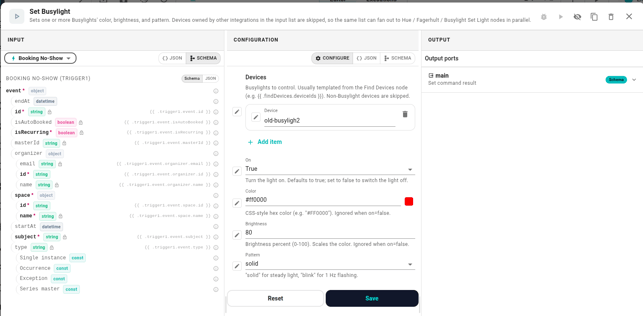
Add a Set Busylight action to your workflow. The action has five config fields:
- Device — pick the busylight from the device picker.
- On —
trueto power on,falseto power off. Whenfalse, Color and Brightness are ignored. - Color — CSS hex
#RRGGBB, e.g.#FF0000for red. - Brightness — 0–100. Scales the color intensity.
- Pattern —
solid(steady) orblink(1 Hz flashing).
The action emits {deviceId, fport} downstream (fport is the LoRaWAN downlink port — always 15 for the busylight). Full reference: Actions — Set Busylight (The Things Network).
What you can do today
- One Set Busylight action — colour, brightness, pattern, on/off.
Not yet supported
- Triggers — TTN devices don't expose triggers in workflows yet, even though some hardware (e.g. the Touch button on the Omega) can produce uplink events.
- Other busylight vendors beyond Kuando Omega.
- Effects — fades, rainbow patterns, or per-pixel control.
- Reading current state — you can't build a condition like "if this busylight is red".
Troubleshooting
If a workflow runs but the busylight doesn't change colour:
- Check the device's lifecycle state on the integration card. If it's Inactive or Not yet activated, the device isn't reachable and downlinks won't apply.
- Verify the workflow's run in the Executions tab. A successful Set Busylight action means TTN accepted the downlink into its queue — the device should apply it on its next keep-alive cycle (within ~30 minutes for a Class C Busylight that has joined).
- If TTN rejected the downlink, the workflow's execution shows the error. See Job failed for general guidance.
For broader integration-level outages (red badge on the Integrations card), see the integration docs' troubleshooting.