
What this workflow does
Four triggers, four colours:
| Booked? | Occupied? | Colour | Meaning |
|---|---|---|---|
| yes | yes | #FF0000 red |
Don't disturb |
| yes | no | #FFCC00 yellow |
Held but empty |
| no | yes | #FF8800 orange |
Ad-hoc use |
| no | no | #00FF00 green |
Free |
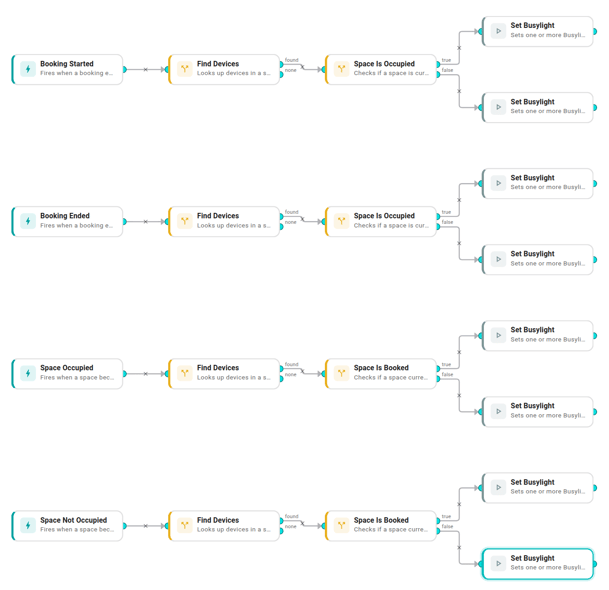
Four independent arms in one workflow — one per trigger. Booking triggers (Booking Started, Booking Ended) know the booking state from the payload and look up occupancy via Space Is Occupied. Occupancy triggers (Space Occupied, Space Not Occupied) know occupancy from the payload and look up booking via Space Is Booked. Find Devices scopes each arm to the busylights tagged room-occupancy-light on The Things Network in the room that just changed. Triggers only fire on transitions, so no "did the colour change" gate is needed.
Each arm has its own Find Devices and its own two Set Busylight leaves (one per branch outcome). Nothing is shared across arms — the workflow engine has no "trigger that fired" alias across triggers, so a shared downstream node can't read from "whichever upstream activated it". The cost is verbosity (8 Set Busylight nodes total, one per arm-outcome combination); the upside is that each Executions log shows exactly one trigger, one lookup, one leaf — instantly answering why did the door turn yellow?.
Prerequisites
- The Things Network connected, Kuando Busylight Omegas paired and assigned to the meeting rooms.
- Each busylight tagged
room-occupancy-light. - Both signals working for each room: a calendar integration and an occupancy sensor.
- Workflows enabled for your organization. See Enable workflows for your org.
Build it
Four arms, one per trigger. Each arm is five nodes: trigger → Find Devices → lookup condition → two Set Busylight leaves. Build arm 1 in full; the others repeat the pattern with different colours and a different lookup.
Arm 1 — Booking Started → red or yellow
- Triggers → Booking Started.
- Conditions → Find Devices:
- Space ID — Template mode,
{{ .trigger.event.space.id }}. - Include descendants — off.
- Integration — The Things Network.
- Tag —
room-occupancy-light.
- Space ID — Template mode,
- Conditions → Space Is Occupied:
- Space ID — Template mode,
{{ .trigger.event.space.id }}.
- Space ID — Template mode,
- Actions → Set Busylight (red leaf):
- Devices — Data reference,
findDevices.deviceIds. - On —
true. - Color —
#FF0000. - Brightness —
80, Pattern —solid.
- Devices — Data reference,
- Actions → Set Busylight (yellow leaf) — same settings, Color
#FFCC00. - Wire: trigger → Find Devices → Space Is Occupied. Then Space Is Occupied's true port → red leaf, false port → yellow leaf.
Arms 2, 3, 4 — repeat with these substitutions
| Arm | Trigger | Space ID template | Lookup condition | true ⇒ | false ⇒ |
|---|---|---|---|---|---|
| 2 | Booking Ended | {{ .trigger.event.space.id }} |
Space Is Occupied | #FF8800 orange |
#00FF00 green |
| 3 | Space Occupied | {{ .trigger.space.id }} |
Space Is Booked | #FF0000 red |
#FF8800 orange |
| 4 | Space Not Occupied | {{ .trigger.space.id }} |
Space Is Booked | #FFCC00 yellow |
#00FF00 green |
Occupancy trigger payloads have no event wrapper — note the shorter .trigger.space.id path for arms 3 and 4.
Save the workflow and toggle Enabled on. From the next transition onwards, every tagged busylight in the org displays the four-colour signal.
Variations
- Just red/green. Drop the lookups and use Show room status on a busylight instead.
- Three colours. Map orange to red so unbooked occupancy reads the same as a real meeting — the door is "in use" either way.
- Blink the squatting case. Set the orange leaf's Pattern to
blinkso unbooked-but-occupied stands out from booked-and-occupied. Useful where bookings are strictly enforced. - Different palette. The colour fields are per-leaf — swap any hex (e.g.
#0066FF/#9966CC/#FF9900/#999999for colour-blind viewers) without touching the workflow shape. - Throttle a flapping sensor. Chain a Cooldown between Find Devices and the lookup so a noisy sensor doesn't strobe colours.
When it doesn't behave
- Wrong colour on the door. Open the Executions tab — it shows which trigger fired, which lookup branch routed, and which leaf ran. If the lookup result disagrees with reality (e.g. Space Is Booked routed
falseright after you booked), the calendar may not have propagated yet. - Workflow only fires for one room. The two Space ID fields on every arm (Find Devices + lookup) must be in Template mode. The default SpaceSelector picker stores a hard-coded room; the Template toggle is what makes the workflow org-wide.
- One arm never fires. Missing executions for a trigger mean its source signal isn't producing transitions — either the calendar isn't propagating Booking Started/Ended, or the occupancy sensor isn't reporting.
unackedDeviceIdsin Set Busylight output. The downlink left the queue but the busylight hadn't woken to receive it. Class C devices ACK on their next keep-alive (15–60s).
Related
- Show room status on a busylight — the two-colour version.
- Find Devices
- Space-aware conditions — including Space Is Booked and Space Is Occupied.
- The Things Network