
The basics
A condition node has one input and two outputs: true and false. Whatever flows in, it checks your rule and sends it out the matching port.
You connect one or more actions downstream of each port:
- Everything connected to true runs when the condition matches.
- Everything connected to false runs when it doesn't.
If you only care about the positive case, leave the false port empty — the workflow ends on that side.

Writing a condition
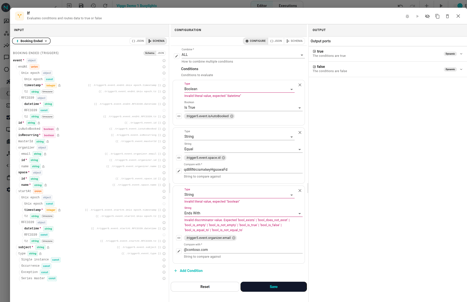
Click an If node and use the inspector's Conditions section. Each row has three fields:
- Value 1 — usually a field from earlier in the workflow, picked with the data-reference icon.
- Operation — the comparison (equals, greater than, contains, …).
- Value 2 — either a fixed value you type in, or another data reference.
Example: only continue for auto-booked meetings:
- Value 1: trigger.event.isAutoBooked
- Operation: boolean is equal to
- Value 2: true
Operations by data type
The picker groups operations by the type of field you're comparing:
- Text — equals, not equals, contains, starts with, ends with, matches pattern, is empty, exists.
- Number — equals, greater than, less than, in range.
- Yes/no — equals, not equals, is empty.
- Date & time — before, after, same as, between.
- Array — contains, length equals, is empty.
- Object — exists, is empty.
Pick the one that matches the field. If you pick an operation that doesn't fit the data, the condition returns false when the workflow runs.
Combining multiple conditions
You can add more than one row. At the top of the inspector, choose how they combine:
- All (AND) — the branch goes to true only if every row matches.
- Any (OR) — the branch goes to true if any one row matches.
Common patterns
- Filter by space — trigger.event.space.id equals a specific space. For broader matches use the Space-aware conditions below.
- Filter by time of day — use the Time Of Day condition for working hours filters. It takes a begin and end time, a list of days of the week, and a timezone. Windows that cross midnight (e.g. 22:00 → 06:00) work as expected.
- Filter by absolute date — use the Date Range condition to compare against a specific calendar date. Pick before, after, or between; pick a timezone; type the date(s). A handy way to silence a workflow during a holiday freeze, or to gate a workflow on a one-off cutoff like an office relocation.
- Compare against a moment from earlier in the workflow — both Time Of Day and Date Range have an optional At field. Leave it empty and the condition uses the current time. Fill it in (typically with a data reference like the trigger's
startAt) and the comparison runs against that moment instead. "Was the meeting booked to start during business hours?" is a one-line condition. - Branch on duration — use the Duration Range condition to ask whether the gap between two moments is longer than, shorter than, or between two thresholds. Pair it with
startAt/endAtfrom a Booking trigger to alert on short meetings, or withsincefrom Space Occupied to escalate rooms occupied past a limit. - Filter by event type — if a trigger can fire for multiple sub-types, branch on the relevant flag (e.g. event.isAutoBooked).
- Throttle, dedupe, or react to changes — when the trigger fires more often than you want to act, use a Stateful condition (Cooldown, Rate Limit, Once, Every N Times, State Changed).
Space-aware conditions
Three conditions help you scope a workflow to part of the office:
- Is Same Space — match exactly one space.
- Is On Floor — match any space on a given floor.
- Is In Building — match any space in a given building.
- Space Is Occupied — is the chosen space currently occupied? Toggle Include descendants and the question widens to any space underneath ("is the floor occupied?", "is the building occupied?"). Add the Space types filter to scope the count to specific kinds (e.g. only meeting rooms, ignore desks).
- Space Is Booked — is the chosen space currently in an ongoing booking? Same shape as Space Is Occupied (the Include descendants toggle and Space types filter apply identically), but answers the calendar question rather than the sensor question. A room can be booked-but-empty (someone reserved it and didn't show) or occupied-but-not-booked (a drop-in chat). Choose the right one for what you actually care about.
Full configuration and worked examples in Space conditions.
Device-aware conditions
Find Devices — pick a space and (optionally) walk its descendants. Filter by integration, vendor, model, tag, or sensor types. Routes to found with a device list if anything matches, none otherwise. Use the output's deviceIds as the input to any downstream device-aware node — one Find Devices node can feed multiple Set Light actions, a Get Sensor Value action, or both.
For reading a sensor value and gating on a threshold, use the Get Sensor Value or Sensor Window Aggregate actions — both emit a value the workflow can compare with an If condition. Keeping the read separate from the compare means the same reading can also flow into a Slack message body without re-querying.
The pattern is always Find Devices → action node: discover the devices once, then fan out. Workflows that mix integrations (e.g. Hue + Fagerhult lights in the same space) don't need separate copies — each Set Light action silently ignores devices that aren't its own.
When a condition can't decide
If the data you reference isn't present on this execution (e.g. a field was optional and the event didn't set it), the condition returns false and the workflow takes the false branch. Build conditions that match what you want to happen — not what you want to exclude.