
What this workflow does
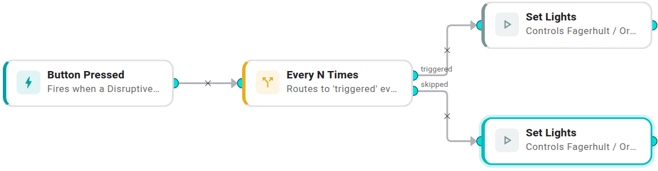
Every press fires a Button Pressed trigger. An Every N Times condition with n=2 flips between its two ports:
- The 1st, 3rd, 5th… press goes out the triggered port → Set Lights
on=true. - The 2nd, 4th, 6th… press goes out the skipped port → Set Lights
on=false.
The condition stores its count in workflow KV, so a power cycle on the button doesn't lose state.
Prerequisites
- Disruptive Technologies connected, with at least one Touch button paired.
- Fagerhult connected, with at least one Organic Response device discovered.
- Workflows enabled for your org. See Enable workflows for your org.
Build it
1. Create the workflow
Workflows → New workflow → name Button toggle → Create.
2. Add the trigger
Drag Button Pressed onto the canvas. No settings to fill in.
3. Add the toggle condition
Drag Every N Times onto the canvas. Settings:
- N —
2. - Key — leave blank.
Drag an edge from the trigger's output into the condition's input.
4. Add the "on" action
Drag Set Lights onto the canvas. Settings:
- Target — Devices. Pick your light from the device picker.
- On —
true.
Drag an edge from the condition's triggered port into this action.
5. Add the "off" action
Drag a second Set Lights onto the canvas. Same target, but On = false.
Drag an edge from the condition's skipped port into this action.
6. Save and test
Click Save, turn Enabled on, add a commit message, save. Press the physical button — the light should turn on. Press again — it turns off. Press a third time — back on.
If you don't have the button handy, use Run workflow in the toolbar and paste a fake event:
{
  "event": {
    "device": { "id": "test-device", "name": "Test Touch", "type": "touch" },
    "timestamp": 1735000000
  }
}
Run it twice and verify the executions alternate between triggered and skipped.
Variations
- One workflow, many buttons — set the condition's Key to
device-{{ .trigger.event.device.id }}. Each button gets its own count, so two people pressing different buttons don't interfere. - Cycle scenes instead of on/off — replace On with Scene (a number 0–7) and run different scenes on each port. With
n=2you alternate between two scenes; for more, build a longer chain (Every N with n=3 followed by another Every N… until we ship a dedicated cycle node). - Use Hue instead — the same shape works with Set Light (Philips Hue) — pick a Hue bulb in both action nodes and drop the
targetFagerhult logic.
When it doesn't behave
- First press turned the light off, not on. Every N's count survives across executions. Either the workflow already ran in earlier testing, or the button has been pressed before. Click Reset in the workflow editor or delete-and-recreate the workflow to wipe the count.
- Both presses go to the same port. The workflow probably saved twice with different node placements — Every N counts per node placement by default. Make sure you're editing the same workflow you ran earlier, or set an explicit Key as in the variations above.
- Light didn't change. Check the execution log on the Set Lights node — most failures are device-side (Fagerhult not authenticated, device id stale). See Fagerhult → "When Fagerhult stops working".