
What it does
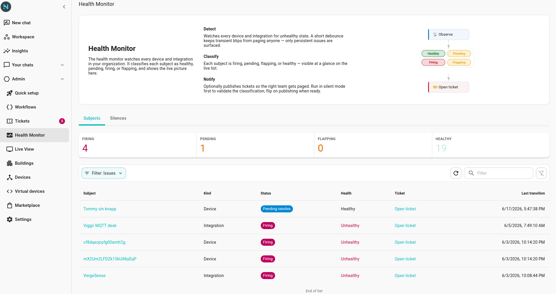
The health monitor classifies every subject (a device or an integration) into one of five statuses:
- Healthy — reporting normally.
- Pending open — just went unhealthy. The monitor is in its debounce window; if the subject recovers within the window, nothing fires.
- Firing — confirmed unhealthy. A ticket is open in Tickets.
- Pending resolve — was firing, just recovered. The monitor is debouncing the recovery; if it stays healthy, the ticket auto-resolves.
- Flapping — flipping between healthy and unhealthy faster than the flap threshold. Auto-resolve is suppressed until the subject settles.
The live picture is on the Health Monitor page. Click a subject to see its transitions timeline, the current ticket (if any), and the silence affordance.
What it watches for
Today the monitor fires on four things:
- Device offline — a device hasn't reported in. Per-device tickets.
- Integration unreachable — the integration's network or service plane is down. Integration-level ticket; devices behind it may continue to report cached state.
- Integration credentials invalid — the integration's OAuth token, API key, or password stopped working. Integration-level ticket.
- Multiple devices offline (cascade) — many devices on the same integration went offline together. Rolled up into one parent ticket so the queue stays readable; see Cascade rollups.
What you do with it
- Watch the list. Operators triage from the Health Monitor page by status.
- Read the ticket. Each Firing subject is one click from its ticket in Tickets. Comment, start, resolve from there.
- Silence during maintenance. When you know a subject is going down on purpose, silence it so the monitor doesn't fire a ticket. See Silences.
- Understand the policy. Two per-org switches — Enable Health Monitor and Publish tickets — control whether the monitor runs and whether it opens tickets. The debounce windows and flap thresholds are tuned by Neowit across all orgs. See Policy settings.
Note: The health monitor is a separate feature from Tickets. The monitor observes; it can be configured to publish tickets or not. If publishing is off, you still see the live picture on the Health Monitor page, but no rows land in Tickets.
What it doesn't do (yet)
- It doesn't decide priority. Every confirmed-unhealthy subject opens a ticket of equal weight. Use workflow conditions to route different kinds to different channels.
- It doesn't escalate on its own. Starting and resolving tickets is operator-driven (or workflow-driven). The monitor only opens tickets and auto-resolves them on subject recovery.
- It doesn't track non-Neowit entities. Health is observed only for devices and integrations registered in your org.