
The three modes
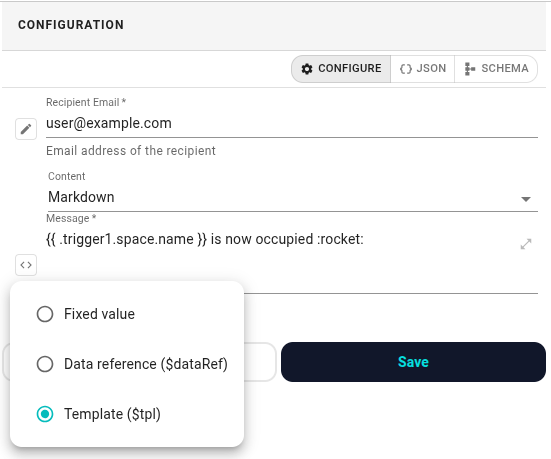
Every configurable field has a small mode button on its left with three options:
- Fixed value — what you type is used literally. Default. Fine for channel names, fixed text, toggles.
- Data reference ($dataRef) — pull one upstream value into this field. Opens a picker.
- Template ($tpl) — a Go template expression. Use when you need to combine fields, convert types, or mix dynamic text with fixed text.
Pick whichever fits what you want to say.
Data reference
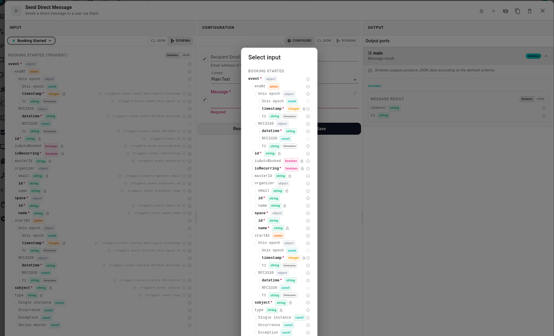
Pick Data reference ($dataRef) and the Select input dialog opens.
- One section per upstream node, headed by the node's name (e.g. Booking No-Show).
- Each section shows the node's output schema as a tree with type badges.
- Click any leaf field — a string, number, boolean, or enum — to insert it. Objects and arrays aren't directly selectable; drill into their fields.
Once inserted, the field shows a chip with the dotted path — bookingTriggerId.organizer.email. The first segment is the node's internal id, not the word trigger.
Watch out
- No type coercion. If the upstream field is a number and this field expects a string, the run fails with a validation error. Use a template instead to stringify.
- No edit-time check. If the referenced path doesn't exist at run time, the task fails with "value not found". Always test before enabling.
Template
Pick Template ($tpl) and a text editor appears. Templates use Go's text/template language plus a hermetic subset of Sprig helpers. You don't need to know either library — the quickstart below covers 90% of cases.
Quickstart
Anything inside is an expression; everything else is literal text.
Insert an upstream field — start with .<nodeId> and dot-walk:
Hey {% raw %}{{ .triggerId.organizer.firstName }}, your meeting just ended.
Pipe through functions:
{{ .triggerId.space.name | upper }}
{{ .triggerId.organizer.firstName | default "there" }}
If / else:
{{ if .triggerId.isAutoBooked }}auto-booked{{ else }}manual{{ end }}
Useful helpers: default, upper, lower, title, trim, replace, printf, add, sub, mul, date. Unsafe helpers (env, filesystem, DNS) are disabled on purpose.
The context
The root is a map keyed by node id — every path starts with the node that produced the data. There's no shorter alias for the trigger; it's just another node. Tip: click a field in the Logs panel's INPUT pane during a test run to copy the exact path.
Type selector
Template results default to strings. If the field expects a non-string, use the dropdown next to the editor to pick one of string, number, integer, boolean, or json. Use json when the expression should produce a parsed object or array.
Go deeper
For cases beyond the quickstart:
- Language reference — https://pkg.go.dev/text/template
- Function catalog — https://masterminds.github.io/sprig/
Watch out
- Missing path renders as <no value>. Unlike data references, a missing path in a template doesn't fail — it prints the literal string. Spot it in execution logs.
- No edit-time syntax check. A broken template (unclosed {{, unknown function) fails at run time. Test runs catch this fastest.
- Plain text output. No automatic URL or JSON encoding — use the json type for structured output.
Picking between them
- Fixed value — the value never changes.
- Data reference — one upstream value, unmodified.
- Template — building text, converting types, or combining fields.
If a template is just {{ .x.y }}, switch to a data reference — simpler, and picks up the upstream schema.
Worked example: DM the organizer on a no-show
- Wire a Booking No-Show trigger into a Send Direct Message Slack action.
- On the Email field, switch to Data reference and pick organizer → email from the trigger
- On the Content field, switch to Template and write:
Hey, your meeting "{{ .<triggerNodeId>.subject }}" was marked a no-show. - Save and test — see Testing your workflow.