
What this workflow does
- A Schedule trigger fires every 15 minutes.
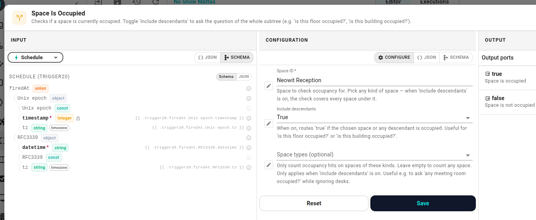
- A Space Is Occupied condition asks "is anyone on this floor right now?" — with Include descendants on so every room and desk under the floor counts.
- If nobody's there, a Set Light action drops the lights to off; the true branch stays unconnected so occupied floors get left alone.
The companion "lights on when occupied" workflow uses the Space Occupied trigger directly and isn't covered here.
Prerequisites
- Workflows enabled for your organization. See Enable workflows for your org.
- Occupancy sensors active and reporting for the floor you want to monitor.
- A lighting integration with the bulbs you want to control. The example below uses Philips Hue; Fagerhult works the same way.
Build it
1. Create the workflow
From the Workflows list click New workflow, name it Lights off when floor is empty, and open the editor.
2. Add the schedule trigger
- Click Add node → Triggers → Schedule.
- Set schedule type to Every N minutes.
- Fill in:
- Timezone — your office's IANA zone, e.g.
Europe/Oslo. - Minutes —
15.
- Timezone — your office's IANA zone, e.g.
3. Add the Space Is Occupied condition
- Click Add node → Conditions → Space Is Occupied.
- In the inspector:
- Space ID — pick the floor you want to monitor.
- Include descendants — on. This is the toggle that turns the question from "is the floor as a single space occupied?" (which it never is, since the floor itself isn't a room) into "is anything on the floor occupied right now?".
- Space types — leave empty. If your floor mixes meeting rooms and hot desks and you only care about one, fill in Room (or Desk) — anything else stops counting.
Wire an edge from the Schedule trigger to the condition's input.
Note: The chosen space itself counts as part of the subtree. If you pick a single room, the toggle doesn't change much. The toggle shines when you pick a container (floor, building, zone).
4. Add the Set Light action
- Click Add node → Actions → Set Light.
- Pick the first bulb in the Device dropdown. Set On to
false. - Wire an edge from the false port of the condition to this action.
- Repeat for each additional bulb in sequence.
Leave the true port unconnected — when somebody's on the floor, the workflow runs to the condition and stops there.
5. Test it
- Click Run workflow.
- The Schedule trigger opens with an empty payload (
{}) — leave it as-is and click Run. - The Logs panel shows the trace. If the floor is empty right now, the workflow routes to false and the lights turn off. If somebody's there, the workflow ends after the condition.
To exercise the false branch on a busy floor, temporarily change the Space types to a kind you don't have on the floor (e.g. Building) — the filter matches nothing, the condition returns false, the lights drop. Reset before saving.
6. Save and enable
Click Save, leave Enabled on, write a commit message ("15-min floor sweep, off when empty"), and the workflow takes over.
- Whole-building sweep. Pick a building instead of a floor — same toggle. One workflow covers everything, but it's coarser (any meeting room across the building counts).
- Only count meeting rooms. Fill Space types with Room (or Room + Area) to ignore desks. Useful when staff are routinely at their desks late but the meeting rooms are empty and lit.
- Per-floor copies. If you want different schedules or thresholds per floor, build one workflow per floor — they're small.
- Pair with a turn-on flow. A separate workflow with a Space Occupied trigger → Set Light (on) catches presence the moment a sensor flips, so the room is lit before the next 15-minute sweep.
When it doesn't fire
If a floor stays lit when it should be off:
- Open the Executions tab. The Schedule trigger should fire every 15 minutes regardless. If it doesn't, the workflow isn't Enabled or the timezone is wrong.
- If the trigger fires but Space Is Occupied routes to true, expand the step's trace. The cache might still show someone — sensors update every few seconds, but the cache reads on a slight delay.
- If a recently-added room isn't being counted, the cache refreshes the space hierarchy every 15 minutes. Wait one cycle.
- Lights problems are surfaced on the action step. See Philips Hue — When Hue stops working.