
What tickets shows
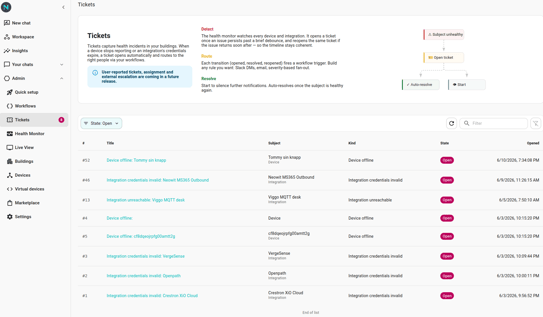
/tickets lists every health ticket in your organization. The default filter is Open, so you see what needs attention right now; switch the State dropdown to In Progress, Resolved, or All to broaden it. The substring search at the top filters by title, subject name, and subject id — useful for "show me everything about meeting-room-a-temp".
Each row shows:
- Title — a one-line description (e.g. Device offline: meeting-room-a-temp). Clicks through to the detail view.
- Subject — the device, integration, or space the ticket is about, with the kind as a caption.
- Kind — the failure mode (Device offline, Bad credentials, Unable to connect, Multiple devices offline, User report, or a workflow-supplied free-form kind).
- State — Open, In Progress, or Resolved.
- Opened — relative time the ticket opened.
- Flap — non-empty when the subject flapped in the lead-up to the open (gone unhealthy/healthy repeatedly inside the flap window). Carried on the ticket itself, not a separate event.
The sidebar's Tickets entry shows a badge with the count of open tickets — so you can tell at a glance whether the org needs attention.
The detail view
Click a row to open the detail view. You see:
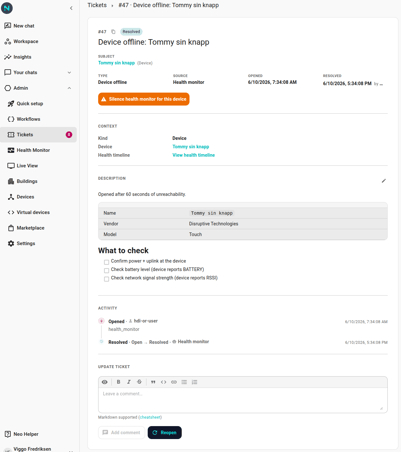
- State and flap chips plus the ticket id (with a copy-link button next to it — handy for pasting into chat).
- Metadata strip — subject (linked to the device/integration/space page), type, source, opened, resolved.
- Description — extra context, if the source provided one.
- Activity timeline — a chronological log of every state change (opened, started, resolved, reopened, flap detected) with the actor and timestamp.
- Context — free-form structured details. For device tickets the health monitor fills
vendorName,modelName, andspaceId(which is a link). - Update ticket — for non-resolved tickets, a comment field and Start / Resolve buttons.
Start vs Resolve vs Reopen
Five buttons can appear on the detail page, depending on state:
- Start (Open → In Progress) — says "I've seen this and I'm working on it." The state moves to In Progress.
- Move to Open (In Progress → Open) — undo of Start. Use when you've taken the ticket by mistake. Quiet — does not re-fire a workflow trigger.
- Resolve (Open or In Progress → Resolved) — marks the ticket closed. If the subject is still unhealthy the health monitor will reopen the same ticket (within the reopen window) or open a new one.
- Reopen (Resolved → Open) — user-driven undo of Resolve, or "the issue came back and I want to track it on the existing ticket". Bypasses the auto-reopen window. Fires the Ticket Reopened workflow trigger so subscribed workflows re-run.
- Add comment — append a comment without flipping state. Available in every state including Resolved (post-mortem notes).
Markdown and comments
The single editor on the detail page accepts GFM markdown (bold, italic, code, lists, tables, autolinks). Use the Preview tab to see what your formatting will look like before submitting. Click Add comment to leave a comment without flipping state. Clicking a state-change button (Start / Resolve / Reopen) with text in the editor appends the text as a comment first, then runs the state change — so a state-change failure doesn't lose the typed comment.
Comments are immutable — you can't edit or delete a comment after posting. Post a new one to correct.
Markdown is sanitised on both ends (raw HTML and scripts are stripped); only the formatting syntax renders.
Per-org policy: /settings/tickets
Settings → Tickets controls when tickets open and how long they're kept. All fields are admin-only.
Enable health tickets for this organization
Master switch. Off means the health monitor drops health events for this org — no new tickets open and existing tickets do not auto-resolve. Existing rows stay readable in /tickets. Within about 60 seconds of toggling, the change takes effect. Useful for incident response or during maintenance windows.
Resolved-ticket retention (days)
How long to keep RESOLVED tickets before they're auto-deleted. Range 5–365, default 365. Open and In Progress tickets are never retention-deleted — only Resolved ones.
How tickets reach your team
The ticket service emits five workflow triggers — Ticket Opened, Ticket Started, Ticket Comment Added, Ticket Resolved, Ticket Reopened — every time a ticket transitions. Build a workflow off each (or off just Ticket Opened for the common case). Workflows can also mutate tickets via three actions: Open Ticket, Resolve Ticket, Add Comment. The canonical example is in Alert when a device goes offline; the trigger payload shape and the action configs are documented in Triggers and Actions.
Workflow-opened tickets carry source: "workflow" so you can distinguish them from health-monitor- and user-reported tickets when filtering or routing.
Why your workflow might fire twice
Trigger delivery is at-least-once. If the service hits a transient delivery fault, the rendered payload is queued and replayed by a background sweep — the same workflow run may fire twice for one ticket transition. Design the actions so a repeat run is harmless: include ticket.id in any Slack / email body so the recipient can tell it's the same ticket, and prefer "update if exists" actions over "create" when the destination has its own unique key. Most Slack channels and emergency on-call rotations tolerate the occasional duplicate; the rare cost is more than offset by never losing a ticket alert.