
What this workflow does
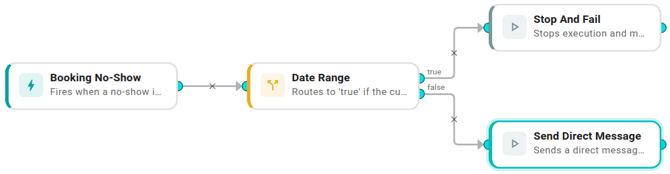
- A trigger fires whenever the underlying event happens (a no-show, an alert, whatever).
- A Date Range condition checks whether now falls inside your holiday freeze window.
- Inside the window: the workflow stops cleanly and nobody gets paged.
- Outside the window: the existing notification action runs as normal.
Same workflow, two states. No re-enabling on January 2.
Prerequisites
- Workflows enabled for your organization. See Enable workflows for your org.
- A workflow you'd like to silence — anything that triggers on events. The example below uses Booking No-Show into Slack, but the pattern works for any trigger and any action.
Build it
1. Open the workflow you want to gate
From the Workflows list, open the existing workflow (or build a fresh one along the same lines as Notify on no-show).
2. Insert a Date Range condition
- Click Add node, scroll to Conditions, and pick Date Range.
- Drop the new node between your trigger and your action: rewire the trigger's output to the Date Range's input.
3. Configure the freeze window
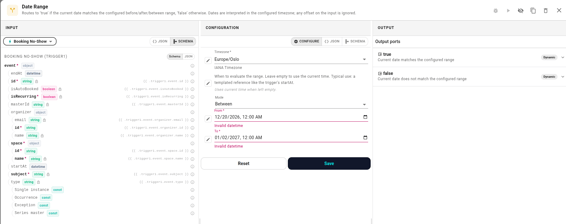
In the inspector:
- Timezone — your office's IANA timezone, e.g.
Europe/Oslo. The dates you type are interpreted in this zone, so you don't have to think in UTC. - At (optional) — leave empty so the condition uses the current time, which is what "is now inside the freeze window" means.
- Mode —
Between. - From — the moment the freeze starts, e.g.
2026-12-20T00:00:00. - To — the moment the freeze ends, e.g.
2027-01-02T23:59:59.
Note: If you paste a date that ends in
Zor has an offset like+09:00, the workflow ignores it and uses the Timezone field instead. One source of truth.
4. Wire the two branches
- True branch (we're inside the freeze): connect to a Stop And Fail action with a message like
Suppressed during holiday freeze. The execution shows up red in the logs, which is exactly the breadcrumb you want when reviewing later why nothing was sent. - False branch (we're outside the freeze): connect to your existing notification action — the Slack DM, the email, whatever it was before.
5. Test it
- Click Run workflow.
- Hand-craft a trigger payload (the Run dialog gives you an editable JSON shell).
- Click Run. If today's date sits inside your window, the execution ends in Stop And Fail; if not, the notification fires.
To test the other branch without changing the date, temporarily flip the From/To to next week and re-run. Don't forget to flip them back before saving.
6. Save and enable
Click Save, leave Enabled on, write a commit message ("Holiday freeze 2026-12-20 → 2027-01-02" is perfect), and you're done. The workflow gates itself at the right time.
Variations
- Only run during the freeze. Swap the two branches: connect the true port to your action and the false port to Stop And Fail. Useful if you have a special "holiday auto-reply" workflow that should be the only thing that runs.
- One-off cutoff. Use Mode → After with a single date to gate a workflow on something like an office relocation. After the relocation date, the new workflow takes over; before, the old behavior continues.
- Combine with Time Of Day. Date Range fires on whole days; Time Of Day fires on hours. Chain them to express things like "during business hours on regular weekdays, but never during the holiday freeze."
When it doesn't fire
If you expected the freeze to kick in and it didn't:
- Open the Executions tab and look at the most recent run. The Date Range step in the trace shows which branch it took.
- Double-check the Timezone field.
2026-12-20T00:00:00in Oslo is not the same instant as2026-12-20T00:00:00in New York. - The
Zand offsets are intentionally ignored — if you suspect that's catching you out, drop them from the From/To values and rely on the Timezone field alone.